
[EN] Creating a WhatsApp newsletter
To create a new newsletter, go to “WhatsApp Newsletter” item and click on the “Create new newsletter” button.
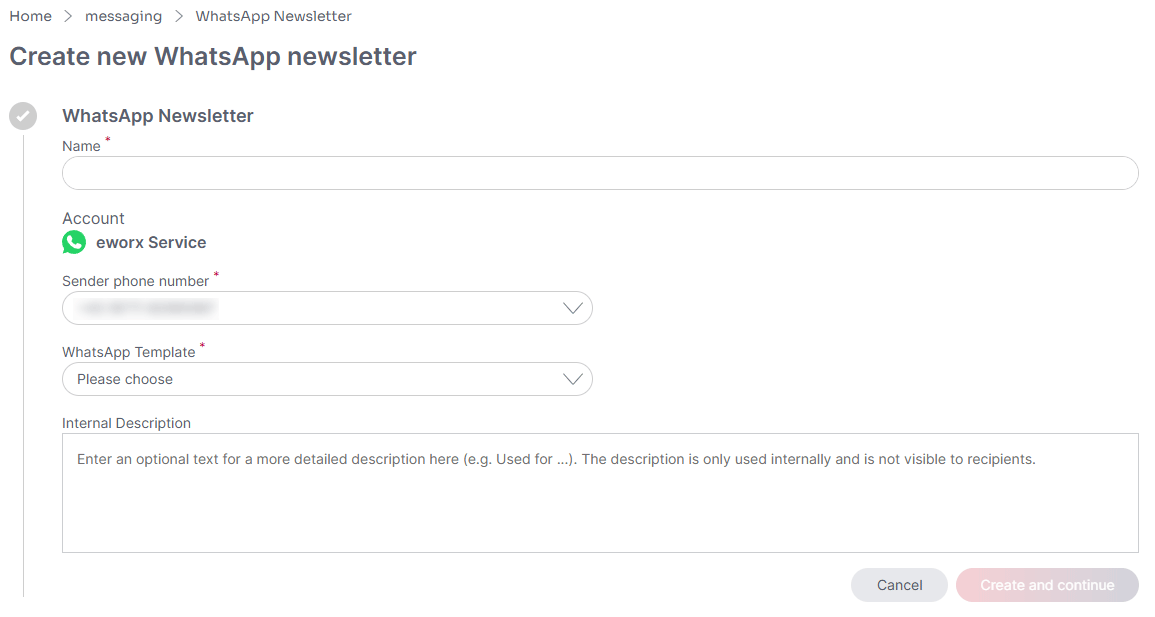
When creating a new WhatsApp newsletter, you must first select the internal "Name" of the newsletter, optionally an "Internal description", the "Language" and the "Sender phone number". If several WhatsApp Business phone numbers are linked to your WhatsApp account in the eMS, you can choose between the different numbers here.
Name
The name of the WhatsApp newsletter is only visible in the system. However, this internal name is not displayed in the newsletter itself. It is best to use meaningful names to make it easier to find later.
Account
Here you can see the WhatsApp account that you have linked under “WhatsApp Accounts”. Currently, only one account can be stored here. The linked account is permanently stored with the eMS client and cannot be changed; it is used here to indicate the WhatsApp Business account from which the newsletter is sent.
Sender phone number
Here you can select the desired WhatsApp Business phone number with which the WhatsApp newsletter should be sent. Under “WhatsApp Accounts” you have the option of adding a new phone number.
WhatsApp Template
Here you can select the desired WhatsApp template, which has already been created in advance (see above).
Internal Description
The “Internal Description” is used for internal notes, for example when several users are working in the system. These notes are only visible in the system. However, the internal description is not displayed in the newsletter itself.
As soon as all the details have been entered, you will not only see a preview of the newsletter on the right-hand side by clicking on the button, but you will also have the option of creating your WhatsApp newsletter step by step.
Subscriber group
As it is important to send content to specific subscriber groups, you have the option here of selecting a subscriber group with subscribers for your newsletter that has been created in advance. Subscriber groups can be both static and dynamic and form a central element in the structure of the eworx Marketing Suite. You can find more detailed information on subscriber groups here.
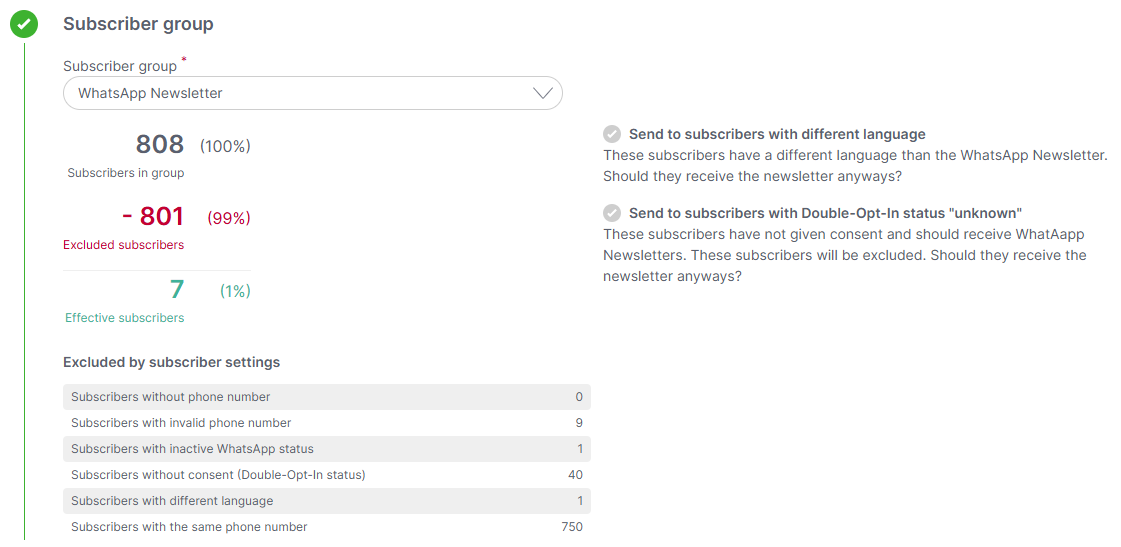
Once you have selected your subscriber group, the number of effective subscribers is automatically displayed in the eworx Marketing Suite. This is calculated from the subscribers included in the subscriber group minus the subscribers excluded from the mailing. Subscribers can be excluded from sending for various reasons. These are displayed in the overview, allowing you to track the deviations.
As soon as a subscriber group has been selected, the preview area on the right-hand side can be personalized for a subscriber from this subscriber group.
Send to subscribers with different language
Subscribers with a different language are automatically excluded from sending a campaign in a different language. By clicking on the checkbox, you can also send subscribers with a different language than the one stored in the newsletter. This option can only be selected if your user has the corresponding authorization.
Send to subscribers with Double-Opt-In status "unknown"
Subscribers who have not (yet) given their consent to receive your newsletter are automatically excluded from receiving it, as they may not be sent. If you would like to send them anyway, you can also send these subscribers by clicking on the checkbox provided for this purpose. This option can only be selected if your user has the appropriate authorization.
Subscribers who have unsubscribed from the WhatsApp newsletter and have therefore revoked the "double opt-in status" can no longer be sent.
You can find more information on “double opt-in” in the following whitepaper.
Validate
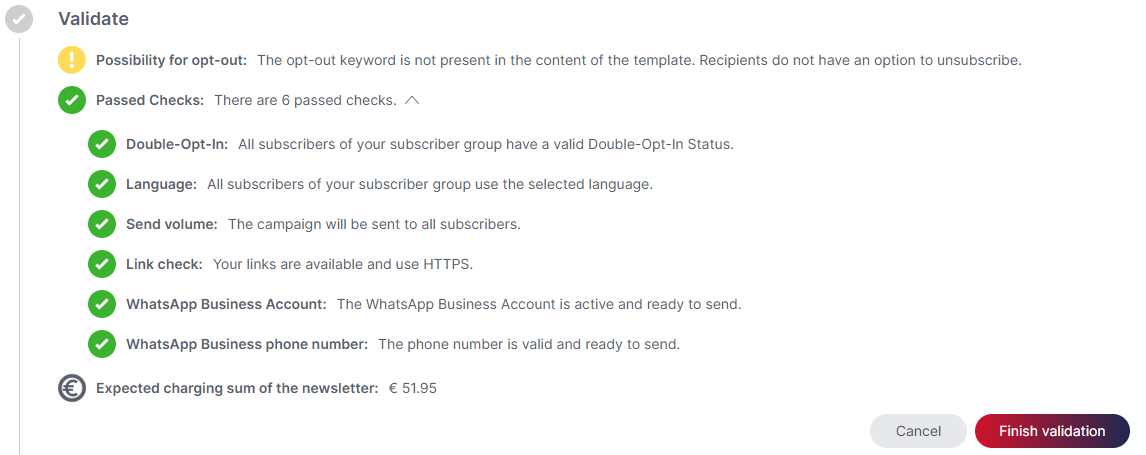
Before you can send your newsletter with the eworx Marketing Suite, all content and settings that affect the delivery or display of your newsletter are checked. The check results will then show you what could be improved or which errors have occurred.
You have the option of viewing details of the individual results. The marking in the traffic light system helps you to decide which of the emerging problems should be prioritized.
Send volume:
This checks whether the newsletter can be sent to subscribers. For example, an error message appears if the subscriber group does not contain any effective subscribers. It is also checked whether the number of effective subscribers in the subscriber group exceeds the sending limit for the sender number.
Personalization:
If you use personalized elements in your newsletter (e.g. “Subscriber Fields”, “text modules”), the system checks whether all subscribers from the subscriber group contain all the necessary data to display the personalization correctly.
WhatsApp Template
A check is performed to ensure that the WhatsApp template used has already been approved by Meta. A WhatsApp newsletter can only be sent using an approved template.
Double opt-in:
This item checks the “double opt-in status” of your subscribers. Among other things, it is checked whether there are subscribers with the “Double opt-in status” ‘Unknown’ or “Revoked”.
Link check:
This checks whether all the links in your campaign are accessible and use https. It is important to ensure good accessibility so that subscribers are not deterred from possible interactions by faulty links.
WhatsApp Business Account:
It is checked whether the WhatsApp Business Account is active and ready to send.
WhatsApp Business phone number:
It is also checked whether the phone number is valid and ready to send.
Language:
Subscriber with a different language are excluded from sending by default. This setting can be overridden under “Subscriber group”.
Expected charging sum of the newsletter:
This item is always displayed and is only used to inform the user. The expected billing amount does not affect the sending itself. WhatsApp newsletters incur costs per message sent, which may vary depending on the destination country of the message. Displaying the expected costs ensures the greatest possible cost transparency and control for the user.
Sending
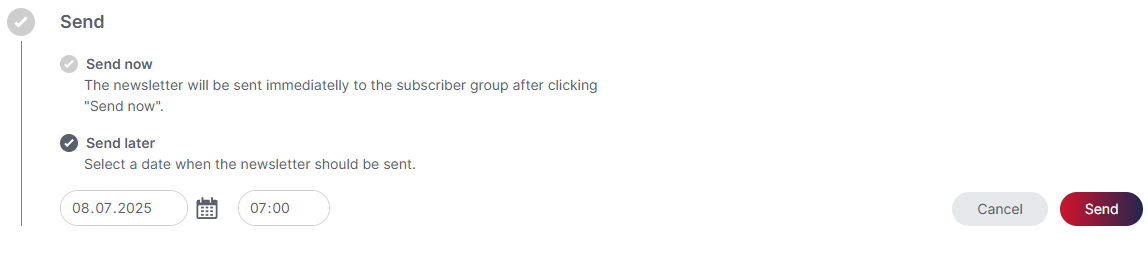
In order for the WhatsApp newsletter to be sent, the verification must first be carried out and completed. Sending can then be configured. You can decide whether the newsletter should be sent now or later. If you select the "Send later" option, the planned sending can be canceled.
Updated 2 months ago