
[EN] Analyze WhatsApp statistics
The WhatsApp statistics section provides you with an overview page for WhatsApp newsletters. All WhatsApp newsletters that have been sent are clearly listed there.
At a glance, you can see important key figures such as the time of send, the number of subscribers to whom the newsletter was sent, and how many messages were delivered, opened, and read. In addition, it shows how many subscribers reacted to the newsletter.
Each newsletter can also be analyzed in detail to view further information and statistics.
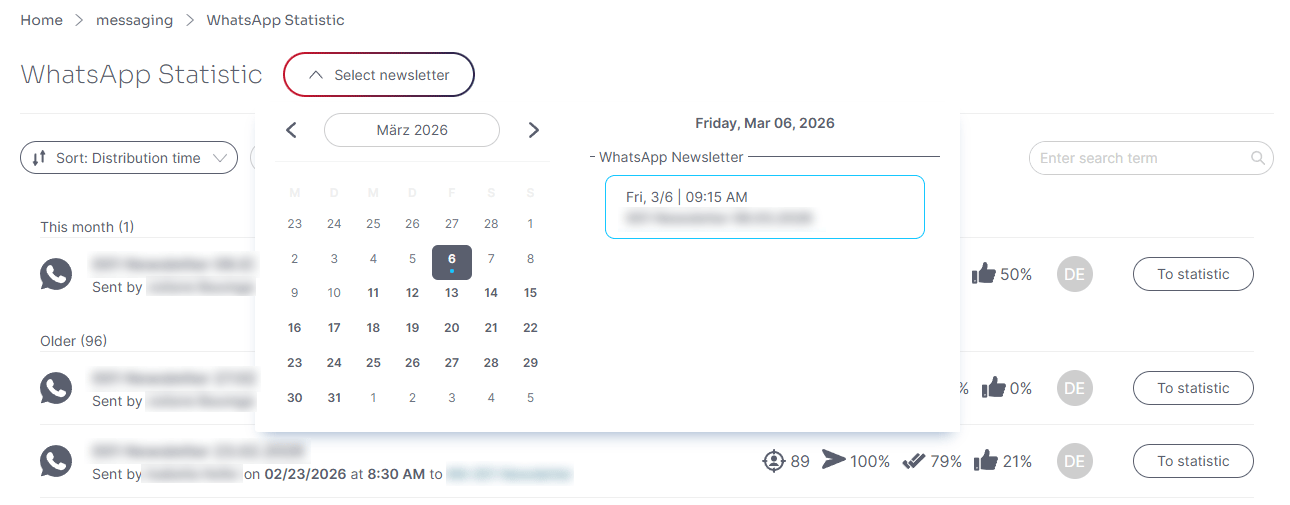
The WhatsApp statistics give you an overview of the success of each individual newsletter. Click on the “Select newsletter” button to open a calendar. The days on which you have sent or scheduled newsletters are marked with a blue dot. To the right of this, an overview of the WhatsApp newsletters sent on the corresponding day opens.
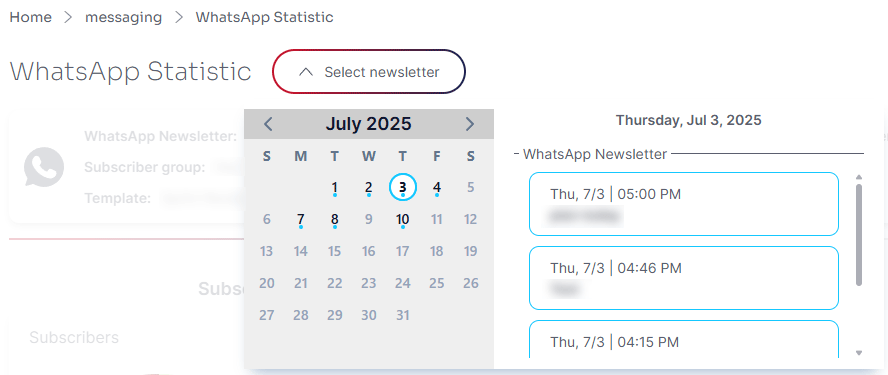
Once you have selected the desired newsletter, an overview of all the key data for the WhatsApp newsletter will appear.
You will find the following facts in the overview of the selected newsletter:
- Name of the WhatsApp newsletter: The name you selected when creating the campaign appears here - the name is only visible to you, your subscribers will not see this name.
- Subscriber group: Here you can see the Subscriber group to which you have sent your WhatsApp newsletter.
- Template: Here you can see at a glance which WhatsApp template was used for the mailing.
- You can also see when the WhatsApp newsletter was sent and can view the newsletter again using the “Go to newsletter” button.
You can use the Switcher tab to display the detailed key figures for the selected campaign (recipients, delivery and response).
Dispatch events
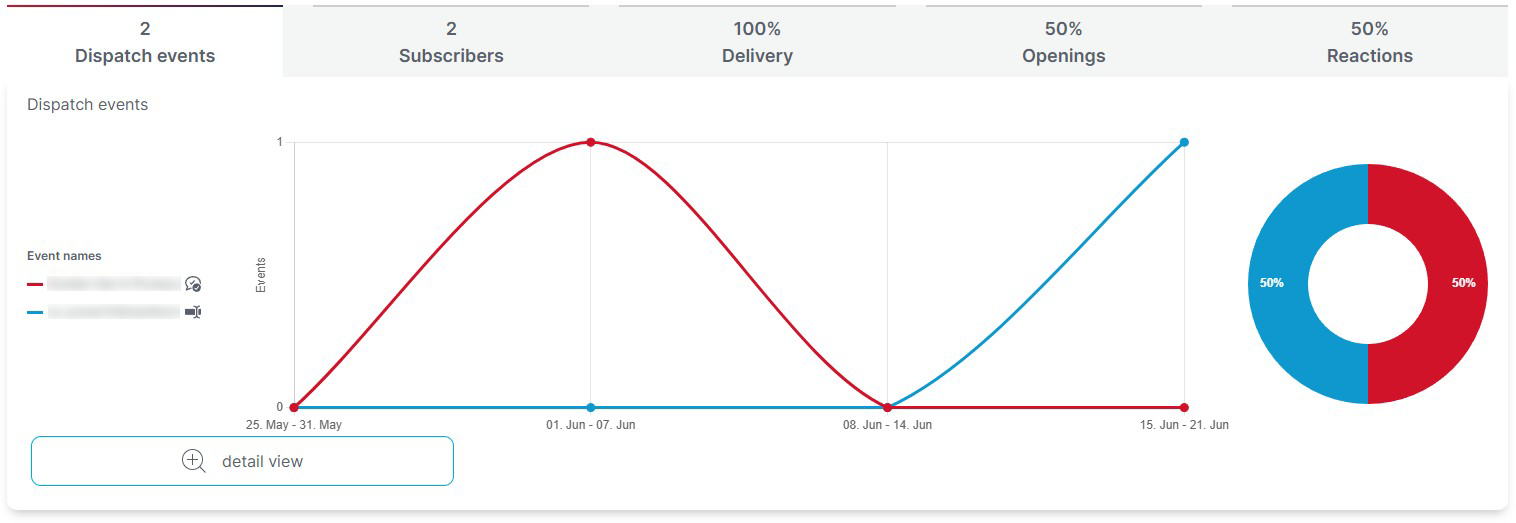
For event-based sends, there is also a tab labeled “Dispatch Events”. This tab shows how often a send event was triggered:
For each trigger, the events from the last 8 weeks are grouped by week.
If there are multiple triggers, the events from the last 4 weeks are displayed, including a breakdown by trigger.
Subscriber
Here you can see at a glance how many subscribers the campaign was sent to, the circle diagram and the list also shows an overview of the excluded subscribers and the breakdown by exclusion reason.
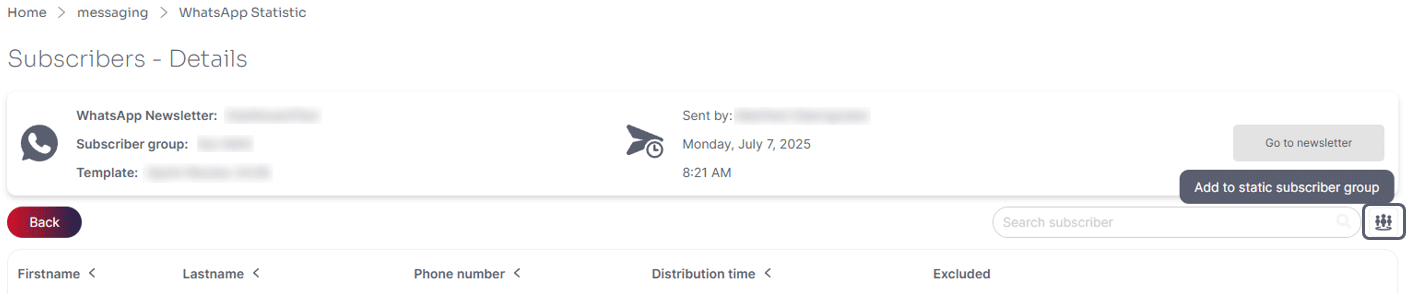
By clicking on the “detail view” button, you will receive a list of the respective subscribers. You can add the subscribers in this list to a static subscriber group.
Delivery
The “Delivery” tab shows the percentage of WhatsApp newsletters that have been delivered, not delivered or are still in progress.
By clicking on the “detail view” button, you will receive a list of the respective subscribers. You can also add the subscribers to a static subscriber group or export them. It is also possible to filter by status (Delivered, In Progress and Not delivered).
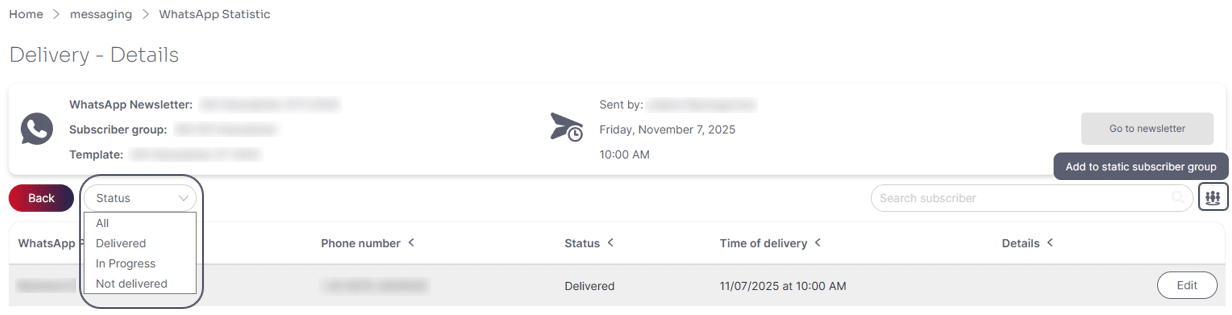
The delivery details in the WhatsApp statistics also show detailed information for undelivered messages.
Reactions
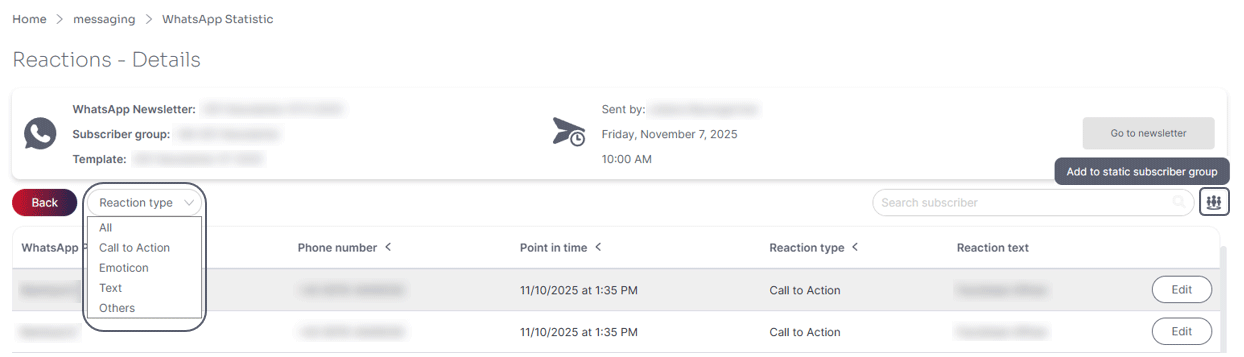
Here you can see which subscribers have reacted to the newsletter. Reactions are either a click on a link or button, or a reply to the newsletter message. Responses can be received as text messages (free text), emoticons or via other WhatsApp response options such as media, location or contact.
The “detail view” button can be used to view the type of response and the response text. You can also filter according to the “Response type”. It is also possible to add subscribers to a static subscriber group.
Openings
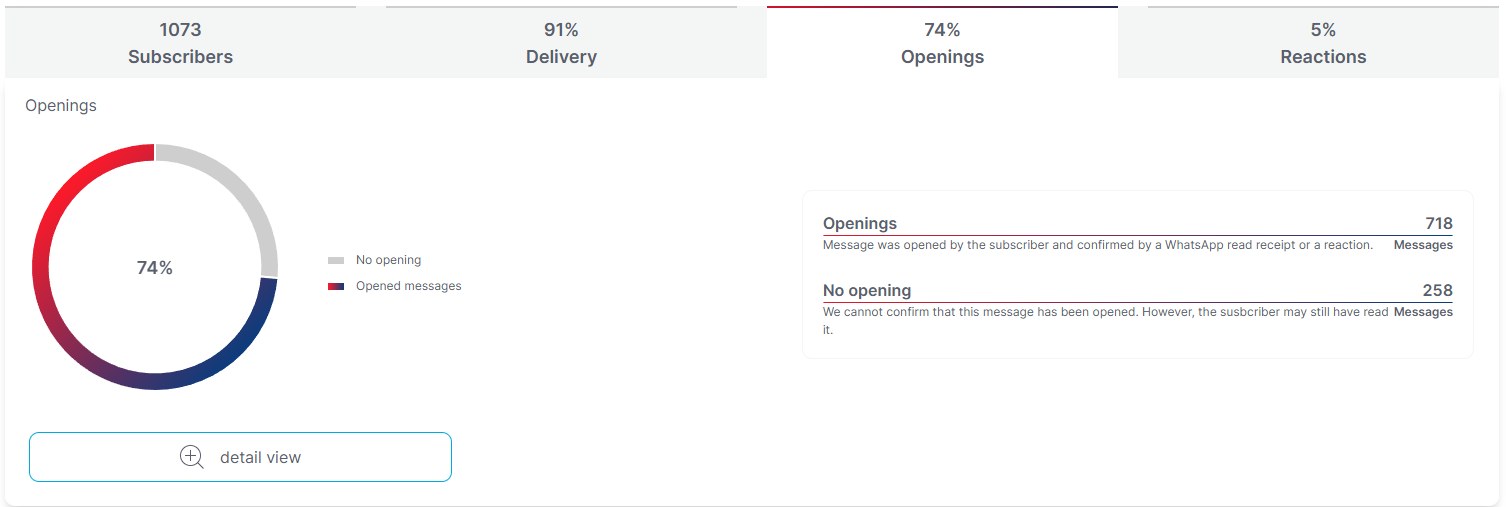
WhatsApp statistics also record and evaluate WhatsApp message openings. A distinction is made between “openings” and “no opening”.
An opening is counted when a message has been opened by the subscriber and this is confirmed by a WhatsApp read subscriber or a reaction to the message.
“No opens” refers to messages for which there is no confirmed opening. In these cases, it cannot be clearly determined whether the recipient has opened the message – however, it is possible that the message has still been read.
unsubscriptions statistics
From now on, unsubscriptions related to WhatsApp messages will be shown directly in the statistics. The tile contains the following information:
- How many subscribers unsubscribed immediately after receiving the newsletter
- How many subscribers unsubscribed more than 2 hours after receiving the newsletter
- How many subscribers unsubscribed more than 24 hours after receiving the newsletter
- Average unsubscribe rate for the last 12 months
If another message is sent via our system between the newsletter dispatch and the unsubscription, the unsubscription is no longer assigned to the original newsletter.
The detailed list can be filtered by unsubscription periods and also exported as a static subscriber group.

Updated 2 months ago