
[EN] Subscriber Statistics
Overview and analysis of your subscriber base
The subscriber statistics in the eworx Marketing Suite provide you with a comprehensive insight into the development and structure of your contacts. They show how your subscriber base changes over time, how active your subscribers are, and what opportunities arise for your marketing activities.
What data is included in the history statistics?
Under “Subscribers” > “Subscriber statistics”, you will find a subscriber history in the “Overview” tab. This section provides a clear overview of your current and past subscriber numbers. In addition to the graphical representation of the trend over the past few months, you can also view the growth of your subscriber base as a percentage.
Please note that both the graphical representation and the reported growth are based on the total number of all subscribers in the system. This takes all contacts into account – regardless of their status (e.g. subscribed, unsubscribed, active, inactive or DOI status).
An increase in the statistics therefore does not necessarily mean an increase in active or subscribed subscribers, but rather reflects the development of the entire subscriber database.

You can see what the graphical representation means in specific figures directly below. Using the drop-down menu, you can select the year you want and view a detailed list showing how many subscribers were in your system in the relevant year or month – including helpful information on the corresponding metadata.
What do these figures actually mean?
- Amount: All subscribers in the system
- Active: Subscribers with the email status “Active”
- Disabled: Subscribers with the email status “manually deactivated” or “automatically deactivated”
- Subscriptions: A subscriber only counts as a “subscription” if they have registered via a form. Manually created subscribers, or subscribers who entered the system via an import or an interface, do not count as a “subscription”.
- Unsubscriptions: Subscribers who clicked the “Unsubscribe” link in a campaign (and confirmed their unsubscription)
- Delivered emails: how many emails were counted as delivered (not just campaigns, but every single subscriber is taken into account.
- Registered guests: Any guest who was registered on an event’s guest list. If someone has been transferred to ‘Participation (or added directly to the guest list as an participant), they also count as a registered guest. Subscribers who are on multiple events are also counted multiple times.

Can I create custom views for my subscriber database?
In addition to the standard reports described above, the eworx Marketing Suite also provides you with clear information on various distributions of your subscribers. Among other things, you have direct access to useful insights into your subscribed and unsubscribed subscribers, their email status and the language of your subscriber database.
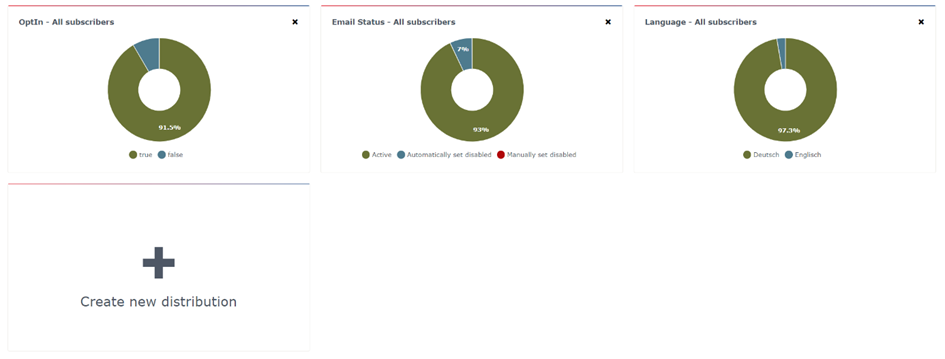
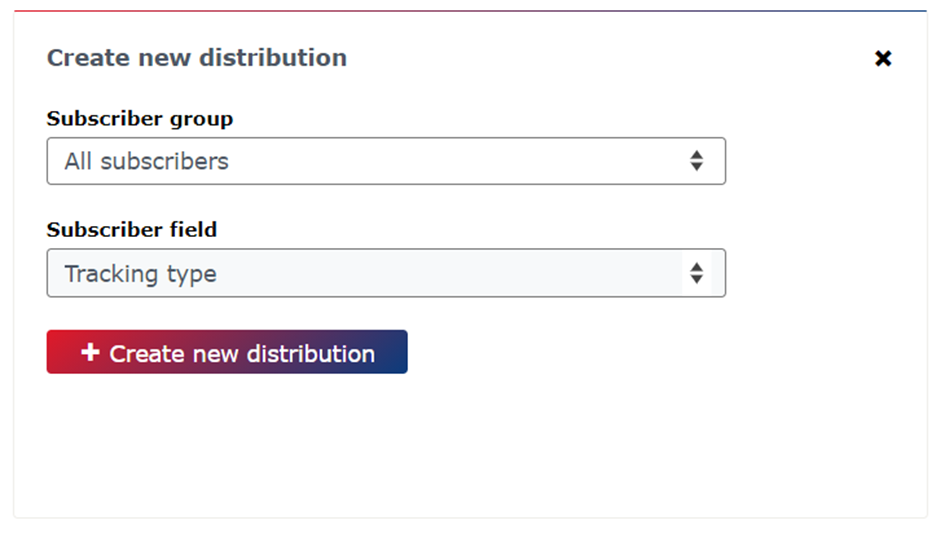
The great thing about this is that you can expand these distributions as you wish and on an individual basis. Click on the relevant ‘Create new distribution’ button to make the changes. You can now select the desired subscriber group for your distribution and use the subscriber field to create the new overview.
How can I get more detailed information about email activity?
Email activity reveals a great deal about your subscriber base. By analysing the relevant metrics in detail, you can gain an overview of how intensively your subscribers engage with your newsletter or content. In the next step, you can, for example, draw important conclusions regarding the frequency of your mailings or the topics covered in them.
In the ‘Email Activity’ tab within the subscriber statistics, you have several configuration options. First, select the relevant subscriber group for your analysis and narrow down the desired time period. In the Activity Criteria section, you can define whether you wish to analyse your subscribers’ activity based on opens, reads or clicks.
By clicking the “View Email Activity” button, you will receive the insightful results of your analysis in the form of a subscriber list.

You also have the option of refining the parameters of your analysis using advanced options. The eworx Marketing Suite distinguishes between the activity basis and the subscriber list.
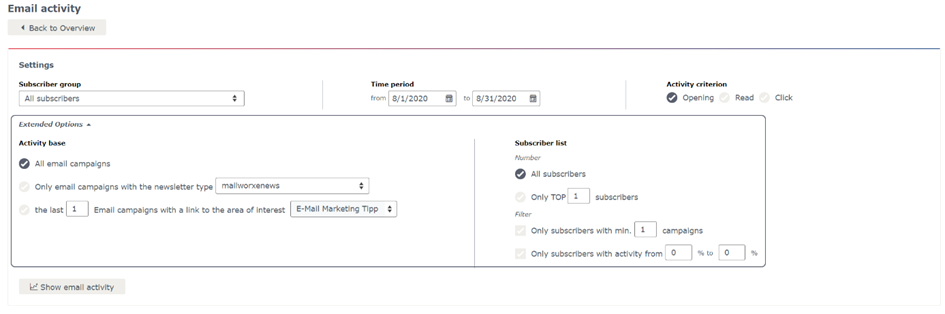
Activity basis: Choose whether you want to include all campaigns in your analysis or would prefer to focus on a specific segment. If you use different newsletter types or work with areas of interest, you can define exactly these segments here for your analyses.
Subscriber list: You can decide whether you want to display all subscribers in the subscriber list or limit this to a certain number. In the Filter section, you can set additional criteria for your subscribers. For example, you can display only those subscribers who have received at least 5 campaigns. You can also focus on very active subscribers (90% to 100%) or those who are less active (0% to 10%).
What information can I obtain about my subscribers’ email clients?
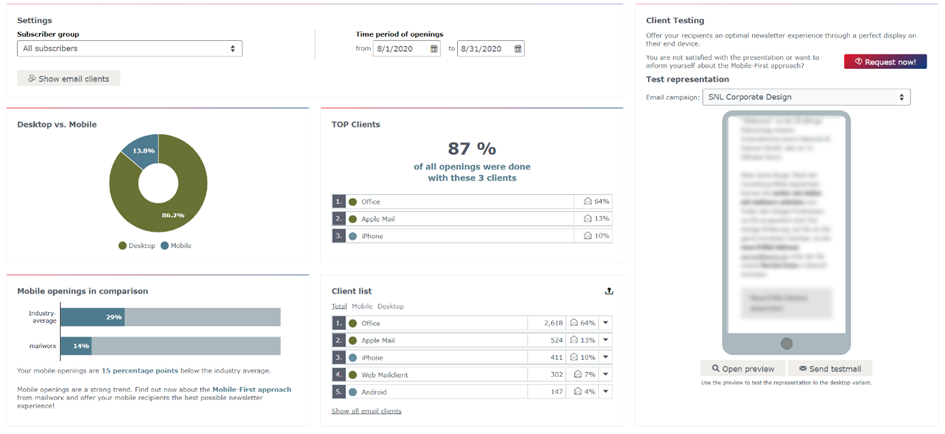
The detailed view of the email clients provides an insightful overview of the devices your subscribers use to open your newsletters. Using this information, you can optimally adapt your mailings to the specific client’s setup. Among other things, this analysis helps you decide whether to design your newsletters using the Mobile First or Desktop First approach.
To ensure optimal display of your newsletters, it is helpful to test them in advance. The TOP Clients or the detailed client list provide an overview of the clients used by your subscribers. Using this information, you can prioritise your tests and carry them out in a targeted manner.
What analysis options are available under ‘Event Activity’?
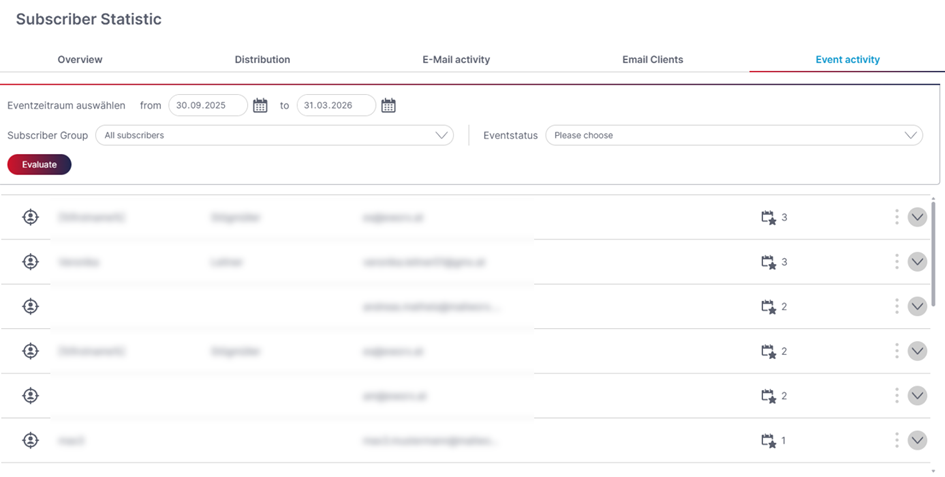
In the “Subscriber Statistics” section, the “Event Activity” tab is visible to users who have permission to use events. Under “Event Activity”, you will find an overview of the top subscribers based on interactions with events, as well as an overview of all event interactions per subscriber. This function can be filtered by subscriber group, event period and guest status.
Updated 5 months ago