
[EN] Changes in the “content” tab
How can I edit and design a form?
The editing and design of the form can be done in the tab „Content„. Therefore, you have four categories: subscriber fields, form fields, extras and layout. In each category, you can find more settings to configure your desired form.

What is the difference between subscriber and form fields?
Values from subscriber fields are saved in the subscriber database. The standard form contains salutation, first name, surname and the email address.
Form fields are only used for the current form and the values are not stored in the subscriber database. For example, they are used for satisfaction surveys, where the answers do not have to be stored in the long term and are used for a one-time evaluation.
How can I add subscriber fields to my form?
You can find the subscriber fields in the tab „Content“ within the respective category. Use the search function to search for already existing subscriber fields and add them via drag & drop to your form.
Each subscriber field can be edited directly in the form editor. By clicking on the gear symbol, all related settings are displayed on the right side. It is in your hand, which fields you want to select, hide or declare as a required field.
If you want to select additional subscriber fields, you must first create and add them. You can do this by going to Subscribers – Subscriber fields in your mailworx menu. After saving the new field, it is possible to choose it in the category section of your form.
How can I add form fields to my form?
In the tab „Content„, you also have the category „form fields“ where you can choose between different field types. Via drag & drop, you can add and place the respective field in the form editor. Don’t forget to enter the appropriate field label.

Further setting possibilities, like displaying the form field only with half the width or declaring required fields and help texts, simply click on the gear symbol or on the field itself. The respective settings are shown on the right side.

The form fields selection or multiselection can be configured with as many options as required. In the settings of the respective selection field, you can also select different views.

Which extras can I add to my form?
Next to the subscribers and form fields, it is also possible to add extras to your form. You will find them in the category with the star. You can use these elements for inserting headlines, free text, spacing, a page break or a separating line. With these extra elements, you can enhance your form optically.

How can I adjust the layout?
You can adjust the layout of your form in the tab „Content“ by going to the category „layout„. You can set your creativity free and change your form as you desire. For example, you can customize the text or headline color, add a header graphic and shape your buttons and text fields as you want. If the form is changed according to your requirements, you can also use the button „Use as default layout for new forms“ to determine that each new form is created with exactly these layout settings.

How can I determine the default layout of forms?
The default values of your forms can be determined in the menu Administration – System-Settings. Therefore, change to the tab „Form default values“ and choose your individual default layout.
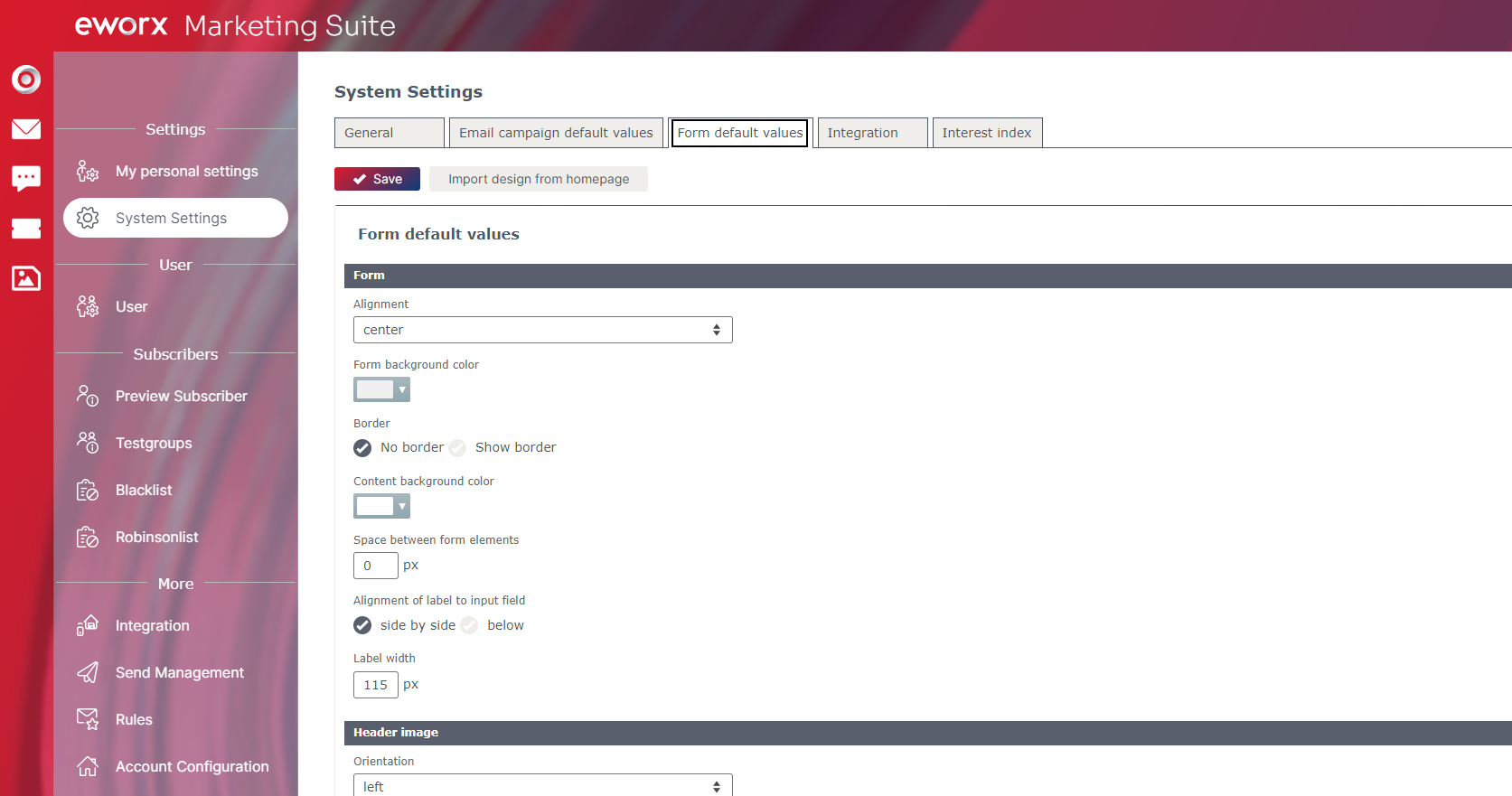
Additionally, you can save the current layout of your form directly in the mailworx form editor. Therefore, use the button „Use as default layout for new forms“ in the category „layout„.
Link fields and map dependencies
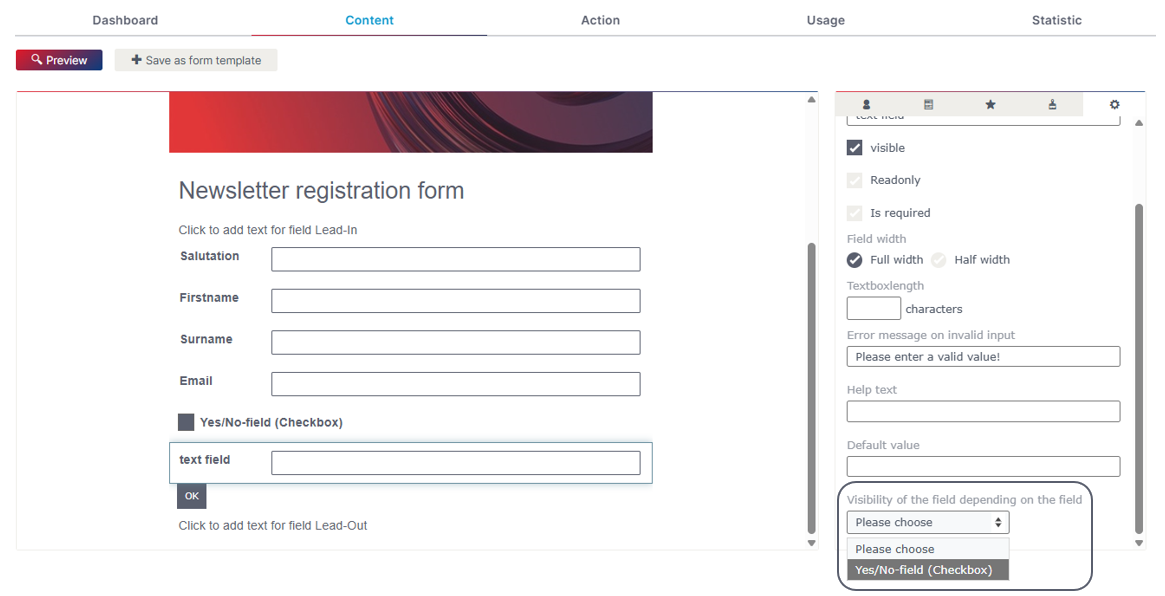
Field dependencies are used to map complex forms, link different fields, and only display them if the yes/no condition is met.
To do this, edit the desired field. This opens another tab on the right-hand side, where you will see the option “Visibility of the field depending on the field” at the bottom. If your form contains a “Yes/No” field, this field will be available for selection.
Define quotas
Quotas can be used to display availability (e.g., of products or free spaces), and you can decide whether or not to show this to the subscriber.
With “selection fields”, you have the option of displaying availability. There is a selection for this in the settings when the desired “selection field” is edited. You can specify the quotas for the respective selections in the field settings. With quotas, the subscriber is shown how many times the selection can still be made when filling out the form.
Updated 5 months ago