
[EN] Create a WhatsApp template
Unlike email campaigns, the WhatsApp newsletter template does not refer to the design. The WhatsApp template contains the entire content and must be approved by Meta. In order to create a WhatsApp newsletter, a WhatsApp template must therefore be created first.
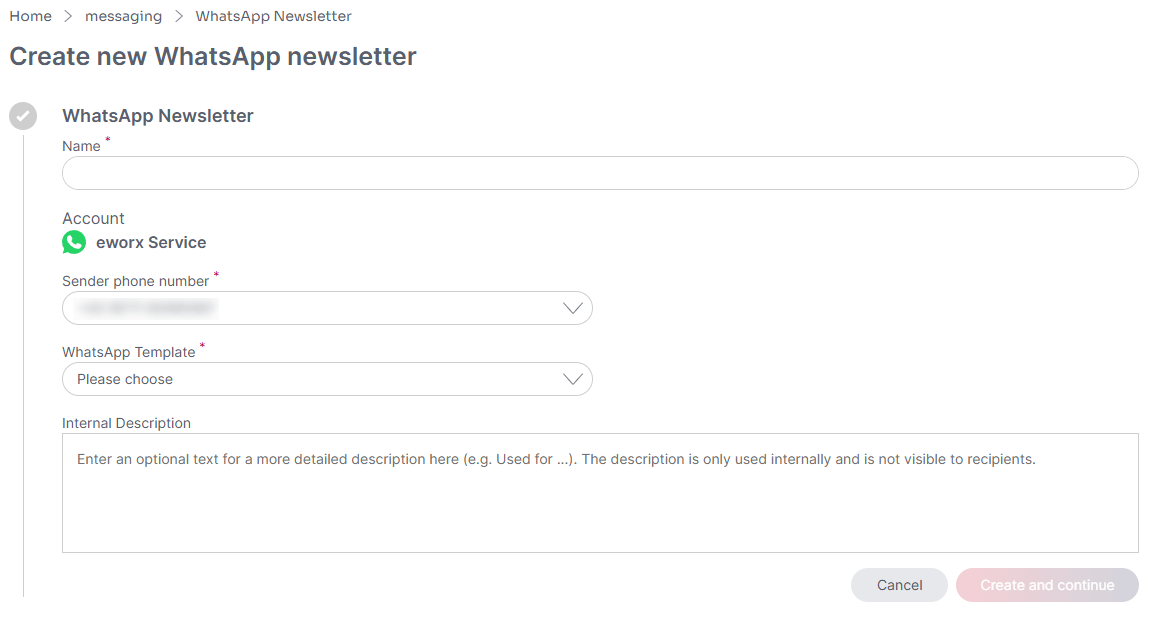
You can create a new template under “WhatsApp Newsletter” > “WhatsApp Templates”. To do this, click on the “Create new WhatsApp template” button.
As with other areas of the eworx Marketing Suite, you can also select an internal “Name”, an “Internal Description” and the "Language" when creating a “WhatsApp Template”. You can also see which WhatsApp account is linked in the first point of the WhatsApp template creation. The linked account is permanently stored with the eMS client and cannot be changed. It is only used to indicate which WhatsApp Business account the template is assigned to. If multiple Sender phone numbers are available, you can select the desired sender number here.
You can also choose between the template categories “Marketing” and “Utility”. Marketing templates are used to send your subscribers offers, product news, or other promotional content. They can be used both for WhatsApp newsletters and for event - based mailings. Administrative templates are used when a message is triggered by an action or request from the subscriber. They must not contain any promotional content or persuasive wording. The template category can be adjusted by Meta (e.g., from “Utility” to “Marketing”). This is enforced very strictly, especially if the content contains promotional elements (e.g., phrases such as “Find more information here”).
After clicking on the “Create and continue” button, further editing options are available. On the right-hand side, you will see a preview in which your changes are displayed immediately. Each step is saved automatically - an additional manual saving process is not required.
NOTE:
Please note that WhatsApp has strict guidelines for newsletter content. Messages related to alcohol, gambling, tobacco, weapons, certain financial offers, or misleading advertising claims may be blocked by Meta. We therefore recommend avoiding such terms and phrases to ensure smooth delivery of your WhatsApp newsletter.
Header
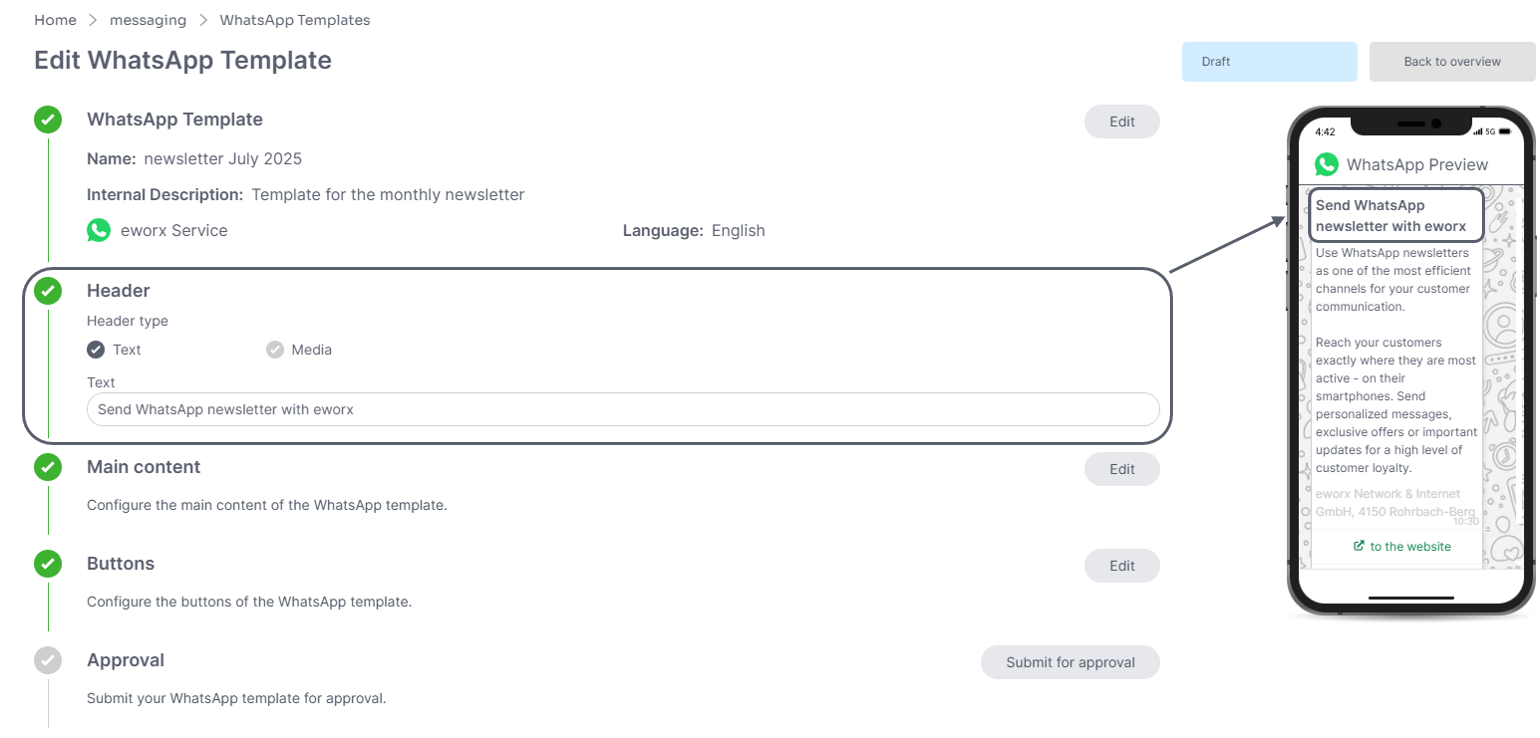
For the “Header,” you can choose between text or media. Images and videos (mp4) are available as media. You can upload the desired file directly under this item. Please note that videos may have a maximum file size of 16 MB.
Once you have selected text or a media file in the header, you will see the changes in the preview on the right-hand side. If text is selected, it will be displayed in bold in the message.
Main content
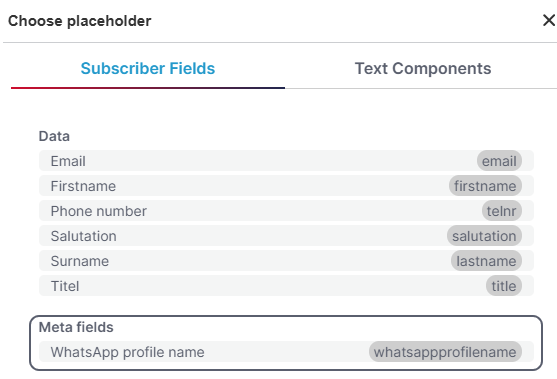
Click on “Edit” under “Main content” to open a text field with an integrated text editor. The AI Assistant is available there. You can format your text in bold or italics and insert emojis and placeholders for personalization elements. The WhatsApp profile name can also be used for all personalizations. It is captured in the “Click-To-Chat Message” of the WhatsApp double opt-in and stored as a “meta field” for the recipient.
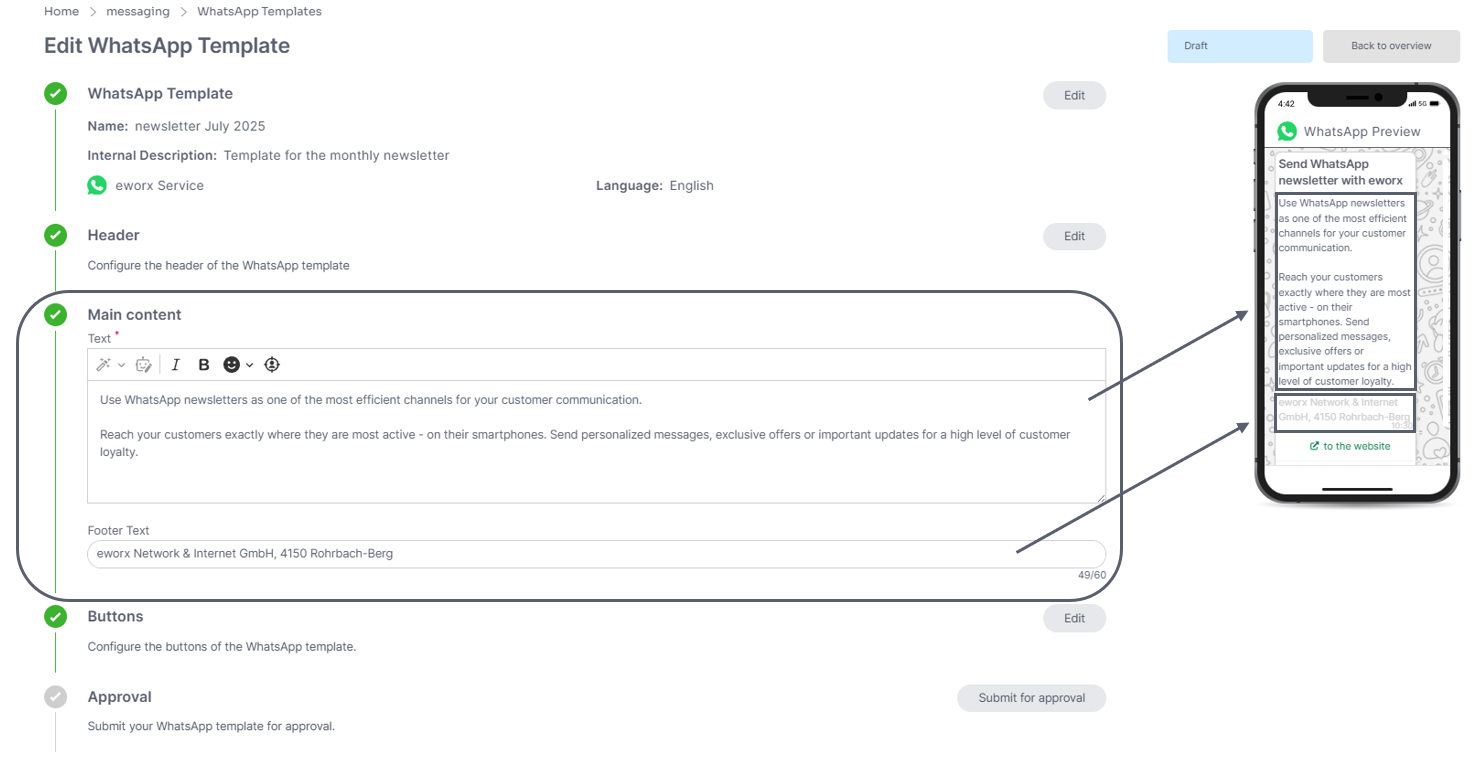
Furthermore, you can not only add a main text, but also an optional “footer text”. This is displayed in light gray in the message.
Buttons
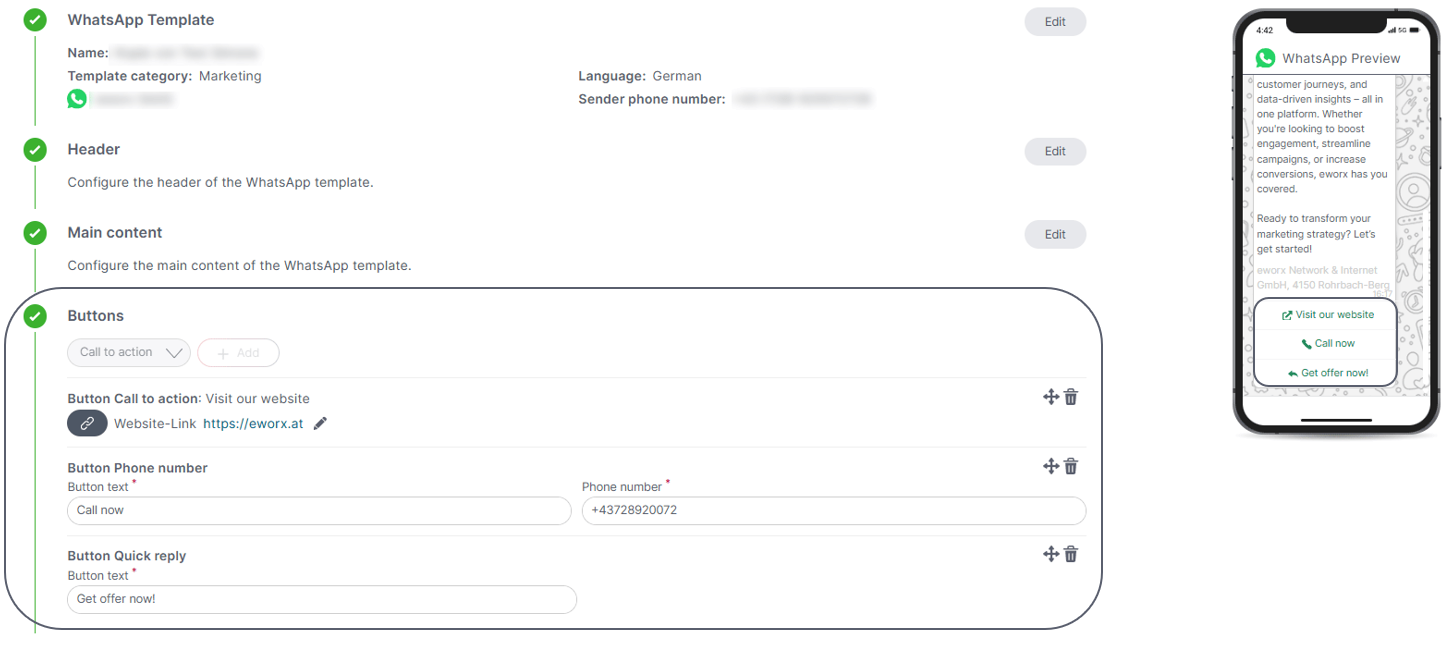
You can also include buttons in the WhatsApp newsletter. Under “Button Type,” you can choose between Call-to-Action, Phone Number, and Quick Reply.
Depending on your selection, you’ll then need to enter button text and either a URL (for Call-to-Action) or a phone number. You can add up to three buttons in total.
Validation & Approval
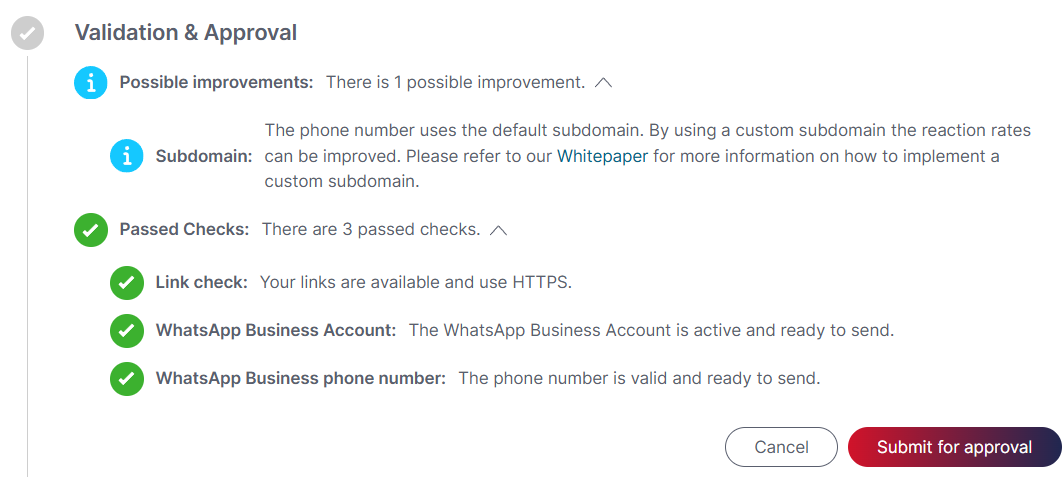
In order to use your template for the WhatsApp newsletter mailing, you must submit it for approval in advance. . First, the template must be reviewed. This Validation includes suggestions for improvements (e.g., using a custom subdomain), a link check to ensure that the links work, and a verification that the WhatsApp Business account is active and the WhatsApp Business phone number is ready for sending. Afterward, the template can be submitted for approval.
During the approval process, Meta checks the template to ensure that it complies with the guidelines for WhatsApp templates. The approval process is usually completed in a few minutes, but can also take longer under certain circumstances, up to a maximum of 24 hours according to Meta. Once your WhatsApp template has been approved, the status is changed in the eworx Marketing Suite. You will also receive a notification in the bell.
As soon as the review has been successfully completed, the template can be used for the WhatsApp newsletter dispatch.
Updated 2 months ago