
[EN] Flexivorlage 2.0 with table of contents
Newsletter creation with Flexivorlage 2.0 with table of contents
The Flexivorlage 2.0 with table of contents supports you with flexible setting options for your campaigns. Use the flexible newsletter template to design your own personalized and individual email campaign. The ready-made template is extremely versatile and ready to use right away.
You can find instructions for creating newsletters in the following whitepaper.
This whitepaper also explains how to insert shared content, create links, insert images and videos, and restrict sections to specific target groups.
What adjustments can be made in the Flexivorlage 2.0 settings with a table of contents?
To the right of the editing area, there is the Settings tab. Here, you can configure “fixed” sections of the email campaign (e.g., buttons, introduction, conclusion).
General settings
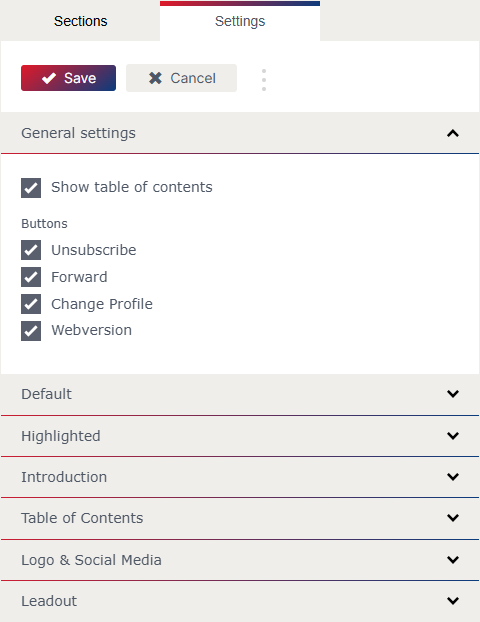
In the “General settings,” you can display the table of contents and show or hide the “Log out,” “Forward,” “Change data,” and “Web version” buttons. The buttons are displayed by default.
Default
Background colors
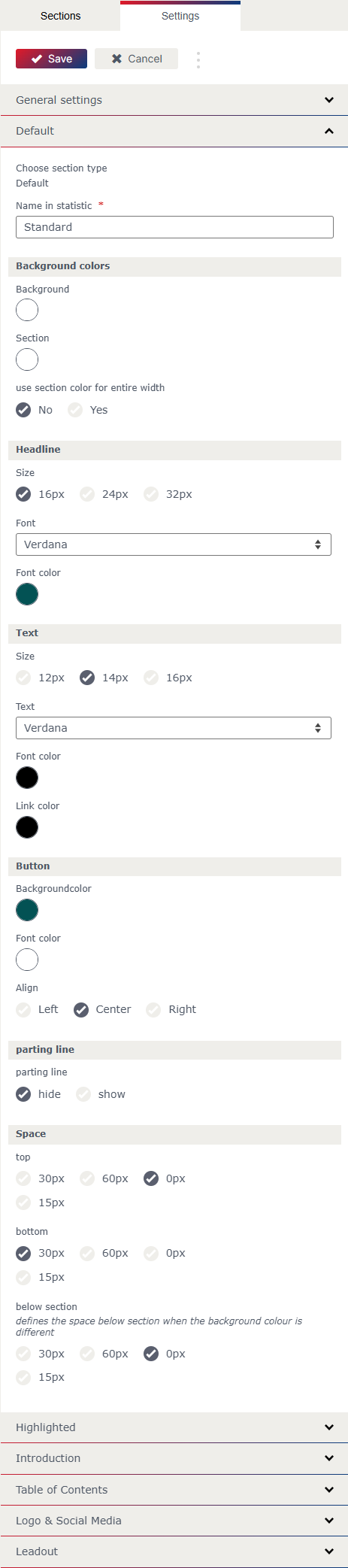
In Flexivorlage 2.0, you can set the desired color for the background and the background color for the sections.
Headings
The font size, a web-safe font, and the font color of the headings can also be defined in the settings.
Button
In the settings, you can specify the background and font color of the button. You can also choose between left, center, and right alignment for the button.
Separator line
You can choose whether or not to display a separator line. If you choose to display the separator line, you can specify the color and line thickness of the separator line.
Spacing
You can also set the spacing after the section in the settings. You can choose between 0px, 15px, 30px, and 60px.
Highlighted
For individual sections, you can choose between Default, Highlighted, and Custom for the “Layout.” The settings for the “Layout” Default and Highlighted can be defined in the general settings.
Background color
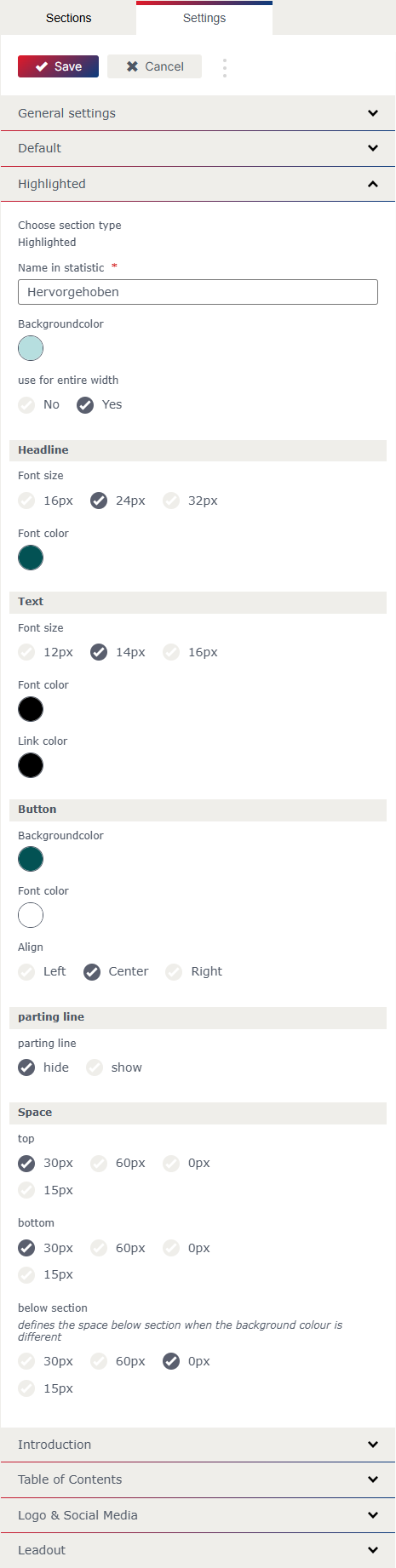
As with the default layout, the background color can also be set for the highlighted layout. You can also specify whether the background color should extend across the entire width.
All other settings
can be stored as default, as with “Layout.”
Introduction
In the introduction settings, you can choose between Default, Highlighted, and Custom for the Layout.
If Custom is selected for Layout, the settings can be specified manually. If Default or Highlighted is selected for Layout, the values specified in the settings are applied.
The link for the button can also be specified in the Introduction settings. Buttons are generally only displayed if they are linked and text for the button has been stored in the settings.
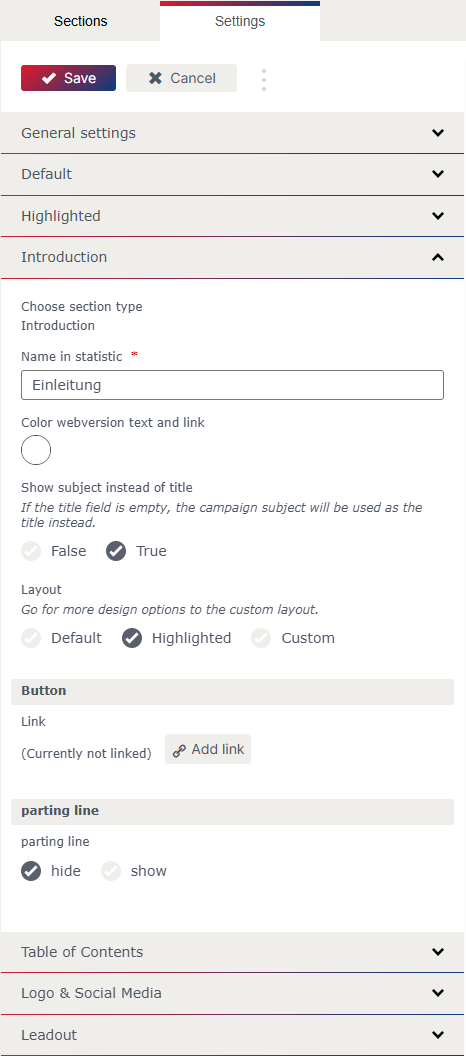
Table of Contents
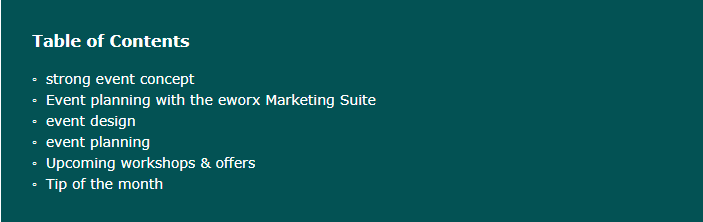
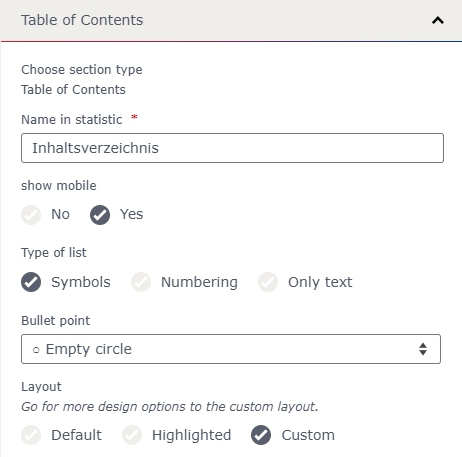
In the Table of Contents section, you can specify whether the table of contents should also be displayed in mobile view. You can also select the type of list: symbols, numbering, or only text.
In addition, the layout can be customized. The options Default, Highlighted, and Custom are available.
Logo & Social Media
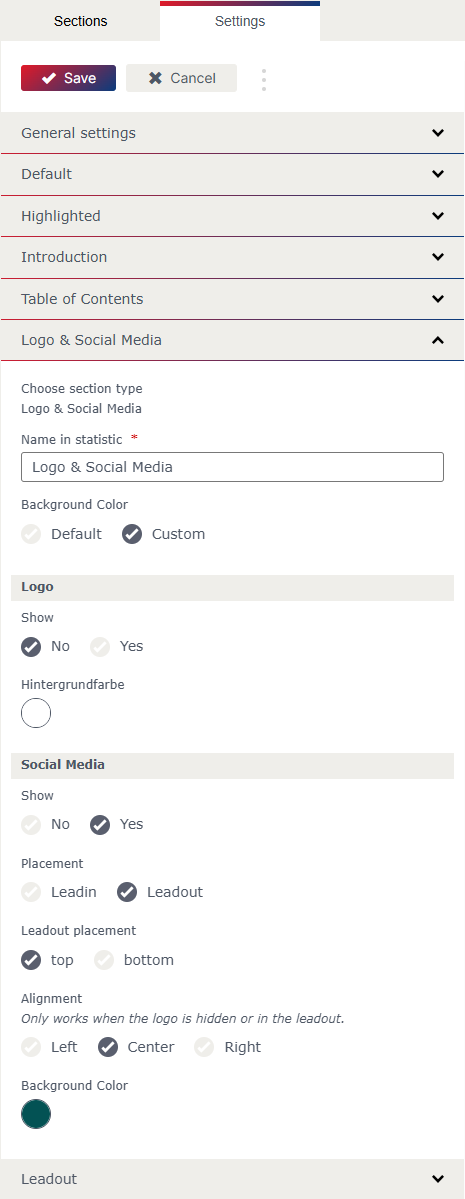
For the logo and social media area, you can choose the default background color (which is stored in the default settings) or a custom background color.
Logo
In the settings, you can specify whether the logo area should be displayed. If you select Show logo in the settings, you can choose between left, center, and right alignment. The logo is displayed above the header and introduction.
Social Media
You can also specify whether image fields for social media icons should be displayed. You can choose between placing them before or after the introduction, and if you choose to place them after the introduction, you can also choose whether the image fields should be displayed above or below the introduction.
As with the logo image field, you can choose between left, center, and right alignment for the image fields for social media icons.
Here, too, it is possible to specify a desired background color.
Leadout
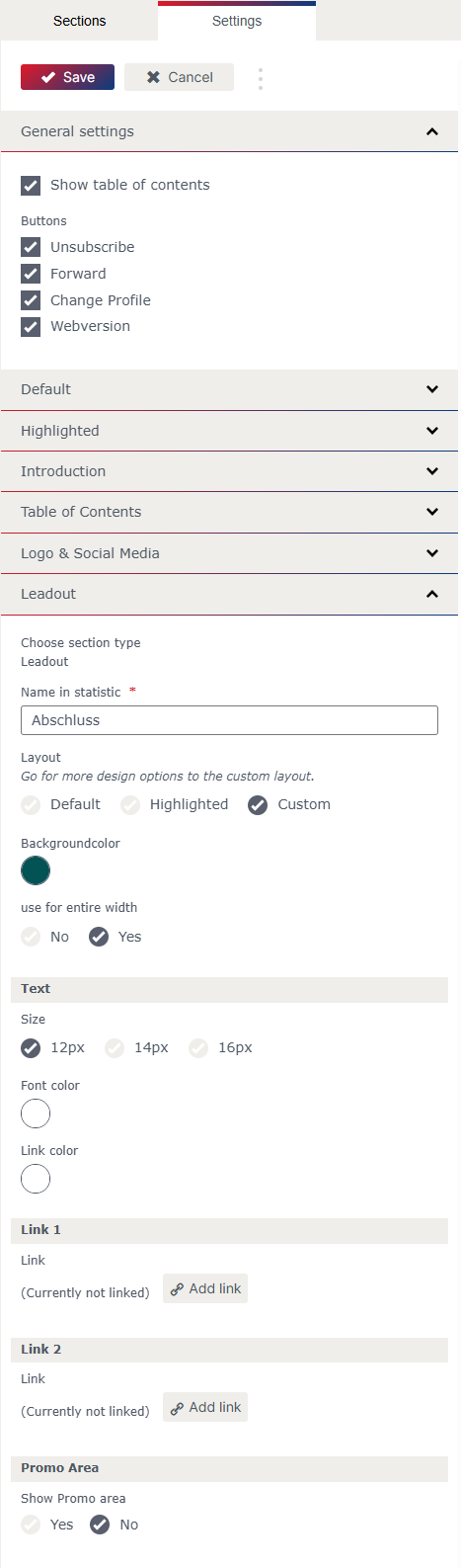
As with all other sections, the layout can be selected in the conclusion. There is also the option of adding two additional links.
What sections are there and what are their special features?
To add further content, the following sections are available in Flexivorlage 2.0:
Article
Teaser
Article with 2 Columns
Article with 3 Columns
Each type has a different predefined appearance (e.g., single or multiple columns, buttons, etc.) and contains image and text fields.
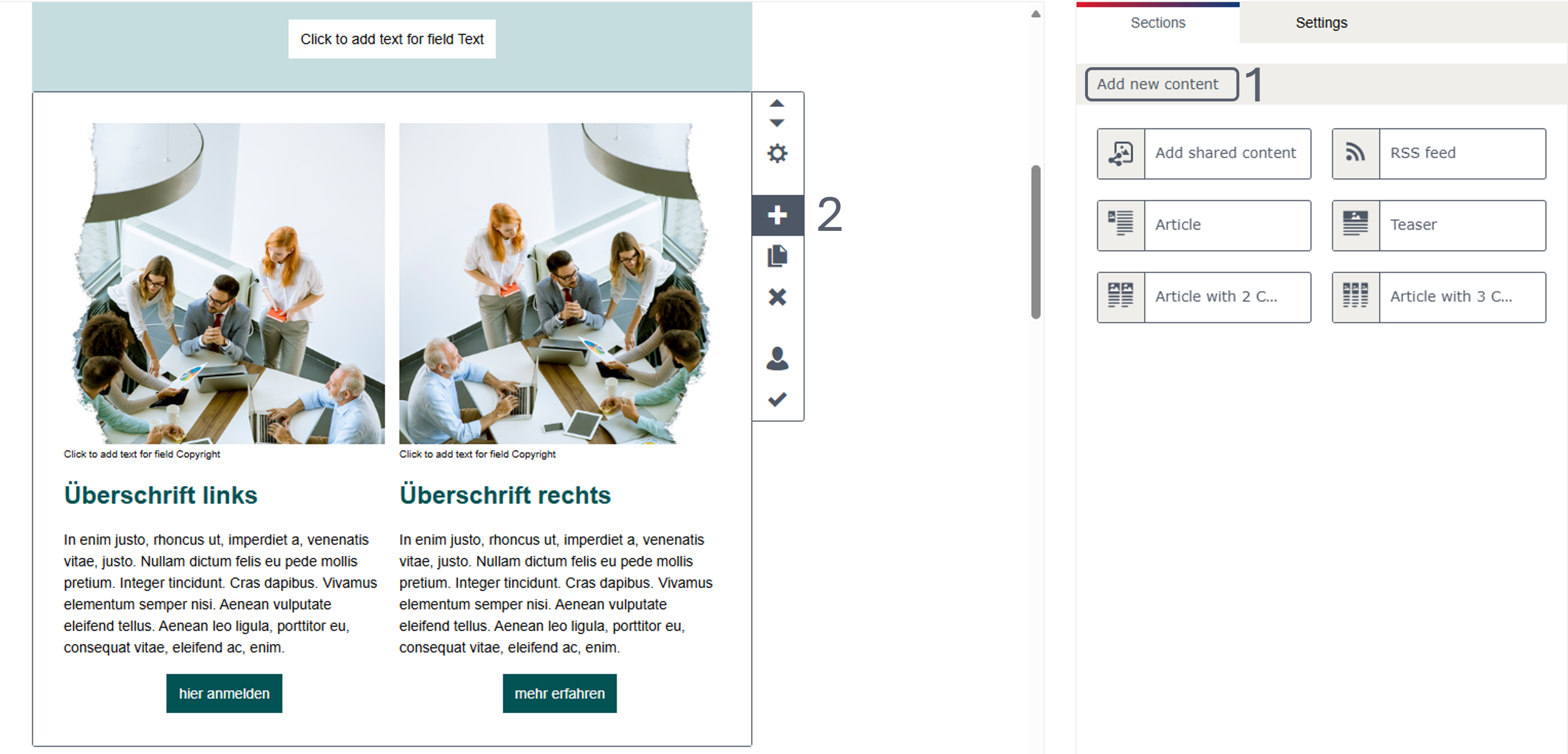
The sections are displayed on the right, in the “Sections” tab (1 in the illustration), where they can be inserted at the end of the email campaign with a single click or dragged and dropped to the desired location. To insert a new section directly below another, use the “+” icon in the editing bar to the right of the section (2 in the illustration).
What settings can be made for the individual sections?
The menu bar to the right of the section contains important commands such as “Add,” “Move,” “Copy,” and “Delete.” It is also possible to restrict the visibility of the section for a specific target group (dynamic content).
The gear icon takes you to the section settings, which may vary depending on the section type. In addition to the input field for the section's statistics name, you will find various setting options there.
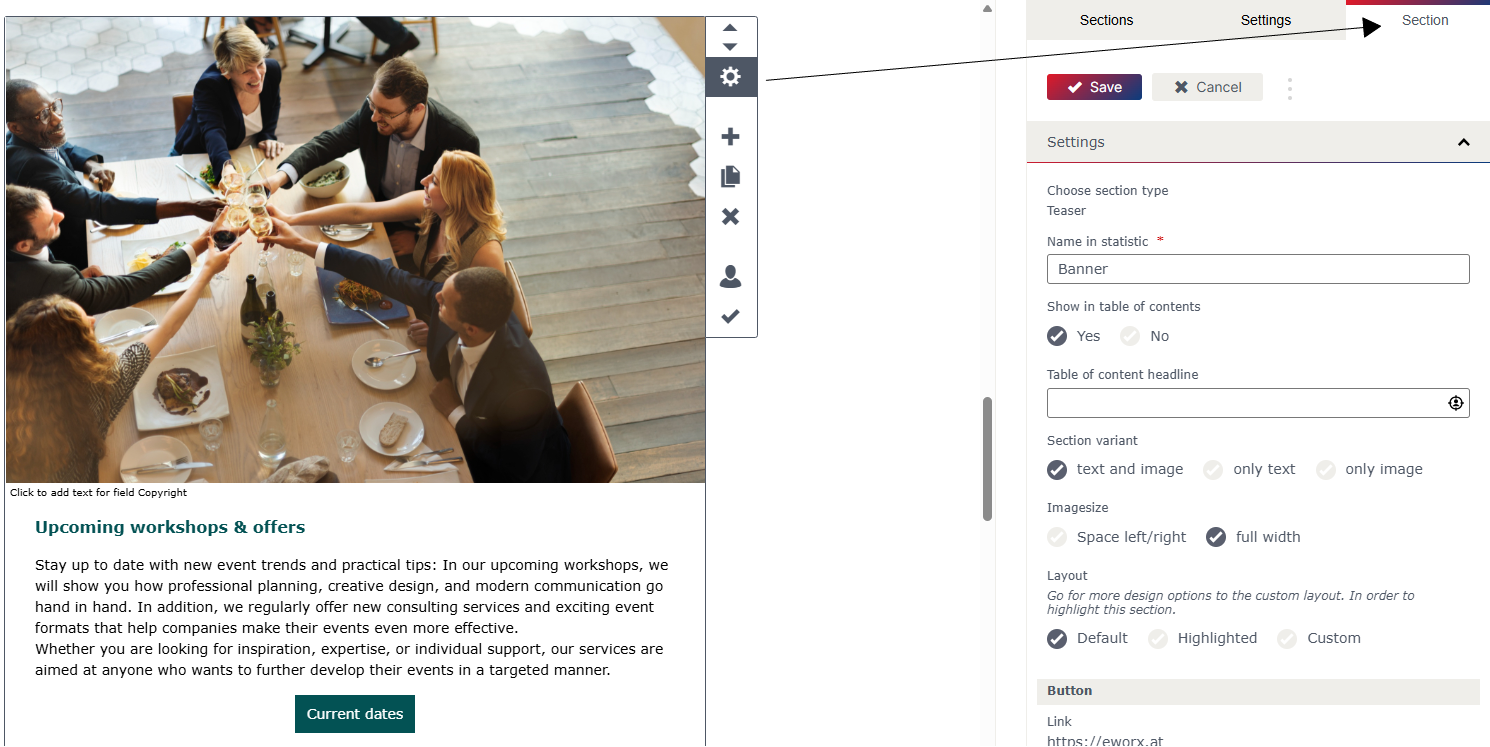
For each section, you can specify whether it should be displayed in the table of contents. With the Article with 2 Columns and the Article with 3 Columns, you also have the option of making this setting separately for each column.
For all section types, the “Layout” can be selected in the section properties. You can choose between Default, Highlighted, and Custom. The settings for the “Layout” Default and Highlighted can be defined in the general settings.
It is also possible to define the links for the buttons in the section properties for all sections. For multi-column sections (Article with 2/3 Columns), a button can be defined for each column.
Buttons are generally only displayed if they are linked and text has been stored with the button.
What are the special features of each section?
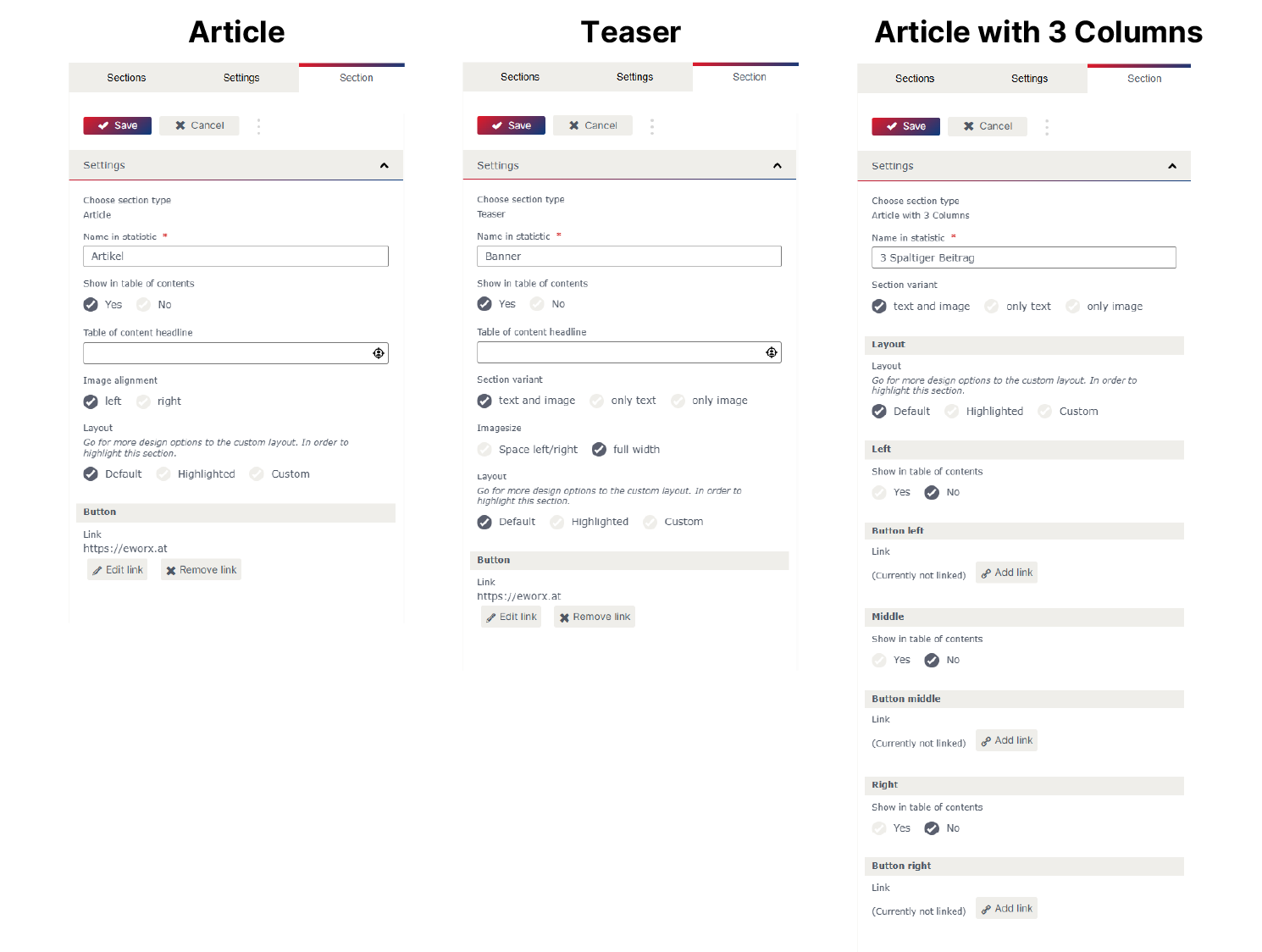
In the Article section, you can select image alignment to the left or right.
The banner offers the option of choosing different section variants (text and image, text only, image only).
Furthermore, the image size (left/right spacing, full width) can be selected.
For Article with 2 and 3 Columns, you can also choose between different section variants (text and image, text only, image only).
Updated 9 months ago