
[EN] Form editor
How to use forms for your email marketing
There is a huge operation area for forms in e-mail marketing e.g. newsletter registrations, events, surveys and so on. Below you can find detailed information on how to create and use forms in your email marketing.
Why do I need forms in email marketing?
Forms are the all-round talent in email marketing and their importance is often underestimated. Through the successful integration of forms and your email marketing software, you create the perfect extra value for you and your recipients.
The eworx Marketing Suite form editor not only increases flexibility in design, but also has unprecedented possibilities for use. Let yourself be inspired by possible applications:
-
The newsletter registration
The classic among email marketing forms is the registration for the newsletter. By connecting the form on your website with your email marketing system, new subscribers are created directly in your subscriber database. It is also possible to welcome them with a welcoming series or the double-opt-in mailing – fully automated. -
The contact request
Request forms can also be implemented on your website. With this interaction, you can simply integrate the newsletter registration into all your request forms on the website. In addition, you can automatically send a confirmation mail so the recipient knows that the query has been received. -
The download
Do you offer a download of a whitepaper, e-book or something like this on your website? Ask the relevant data, such as the email address, via a form and send an automated email campaign to your interested parties with the promised information or resources. It works similar with the registration for an information series. -
The survey
With the form editor, you can easily implement a survey. Use subscriber and form fields to get interesting information from your subscribers. The entered data can be stored individually with the respective subscriber and you can use it for further evaluations and measures. -
The order
Let your subscribers process an order directly through the newsletter and give your existing customers the possibility to order more articles via form. An integration with the respective online shop leads your email marketing to a completely new level. -
The information procurer
Forms will help you to get to know your subscribers even better. As part of a welcome campaign, you can easily integrate a small survey of the respective interests or other important data, such as the date of birth. This information can be used optimally for further email marketing measures. -
The event registration
Registration for events can easily be handled with the eworx Marketing Suite form editor. From the registrations, you can automatically generate registration groups or lists by the system. However, there is more than that: Through the event management module, you can display the whole process of your events.
How do I create a form in the eworx Marketing Suite?
When you open the Forms module in the eworx Marketing Suite, you’ll see a list of your forms, sorted by status.
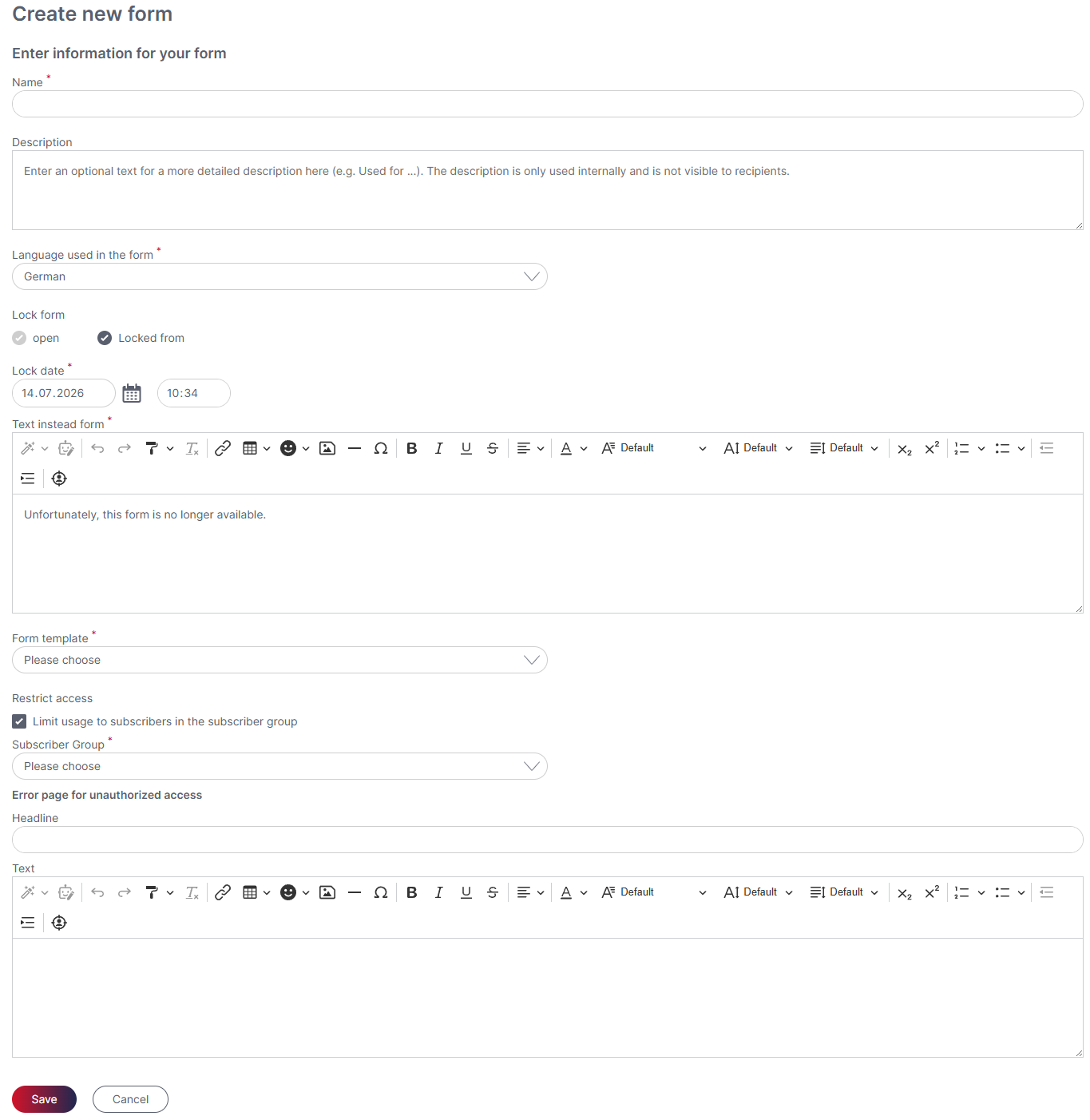
By clicking the “Create new form” button, you can create a new form in just a few steps. In the first step, you must specify the internal name. In the “Description” field, you can add internal notes. You also have the option to disable the form as of a specific date. Once disabled, the text you specify in the designated text field will appear when the form is accessed. Other required fields include the language and the selection of a form template.
When creating a new form, you must select a form template. To do this, you can select the desired form template from a drop-down menu. For more information on form templates, see the following whitepaper
It is also possible to configure forms so that they can only be used by subscribers in a specific subscriber group. This ensures that only authorized subscribers can register via the form.
If a subscriber does not belong to the specified target group, the message stored in the form will be displayed.
- Form linked in an email campaign: The message appears immediately when the form link is clicked.
- Form embedded on a website: Authorization is verified only after the form is submitted. If the recipient is not authorized, the predefined message is then displayed.
What can I adjust in the tab „content“?
In the form editor, forms can be customized and structured. The Layout, Recipient Fields, Form Fields, and Extras sections allow you to flexibly customize the design, content, and functionality. Recipient fields are permanently stored in the recipient database, while form fields are used only for the specific form. Additionally, you can use form templates, define quotas, and set up field dependencies to easily create even complex forms.
Learn more in the following white paper.
What can I adjust in the tab „action“?
In the “Action” tab, you can define various follow-up actions that are automatically executed after a form is submitted. These include, for example, adding recipients to target groups, triggering automations, sending email, SMS, or WhatsApp messages, and initiating a double opt-in process. In addition, success and error pages can be defined, and notifications can be set up for form submissions.
Learn more in the following white paper.
What can I adjust in the tab „usage“?
In the “Use” tab, you can specify whether a form will be linked in email campaigns or embedded on a website. Various options are available, such as data synchronization, spam protection, unsubscribe forms, and a two-step data modification process. Forms can also be embedded via URL, HTML code, pop-up, or QR code. In addition, the eworx Marketing Suite helps ensure compliance with GDPR information requirements.
Learn more in the following white paper.
How can I test a form?
For checking a form choose the tab „Usage„, copy the url and insert it in a new browser tab.

Note: Do not fill out a form in the preview mode or in a test email, because otherwise the preview subscriber „John Doe“ could be overwritten.
How do I select a default form for profile changes?
You will find this option in the menu System-Settings – General within the section „Default form for profile change„. There you can choose one of your forms as a „Change Data“ form for your campaigns. This form is linked in the footer of your campaign to give your subscribers the opportunity to update their own data.

Is it possible to evaluate forms?
Similar to campaigns, there are statistics for forms. You will find a separate tab for this in the respective form.
What information do I get in the statistics?
With the help of the form statistics, you can see at a glance which subscribers have submitted the form. A subscriber list is also available, which you can use to export the subscriber or add them to a static subscriber group.
During export, all fields stored in the form are automatically preselected - both subscriber fields and form fields. If necessary, additional subscriber fields can be added for export, even if they were not used directly in the form.
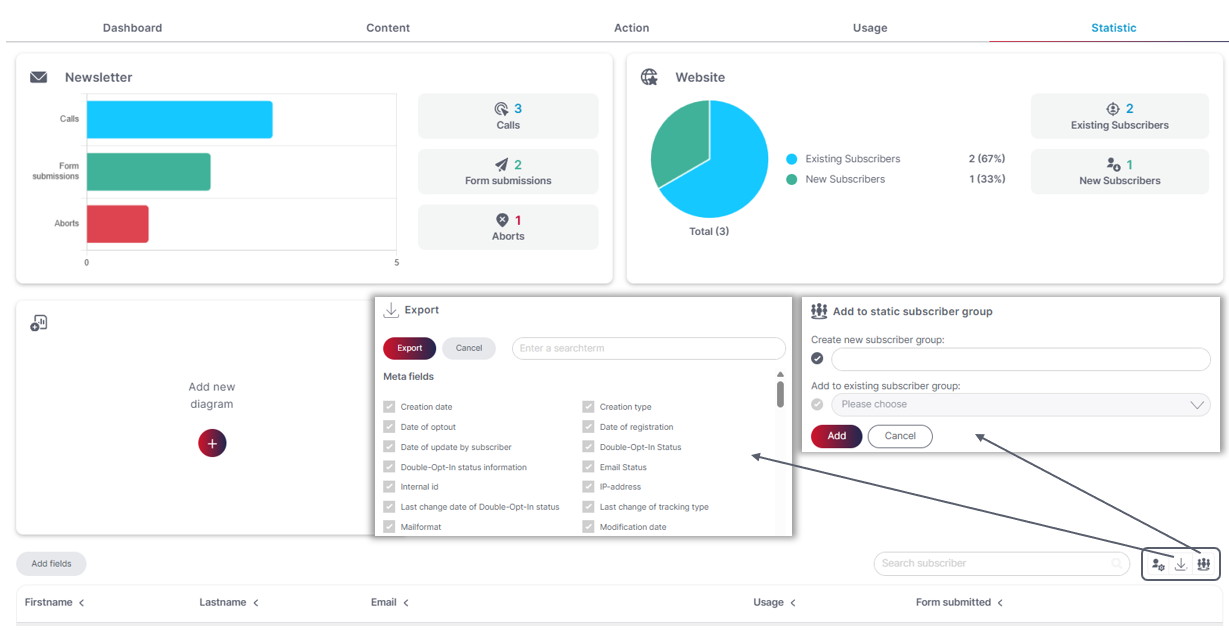
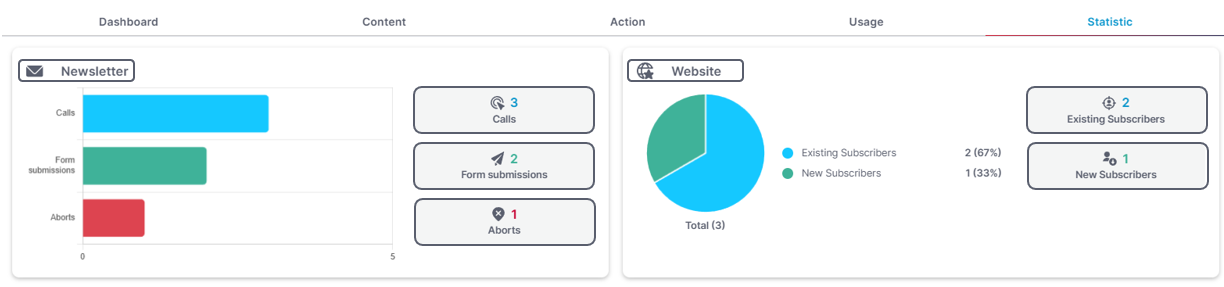
The form statistics distinguish between whether the form was linked in a campaign or integrated into the website.
If the form was linked in an email campaign, you can see the number of form views, form submissions, and cancellations in the statistics. Clicking on the individual numbers will give you a list of subscriber. You have the option of exporting the subscriber or adding them to a static subscriber group.
If the form is embedded on the website, a distinction is made between existing and new subscriber. You can also call up the list of subscribers.
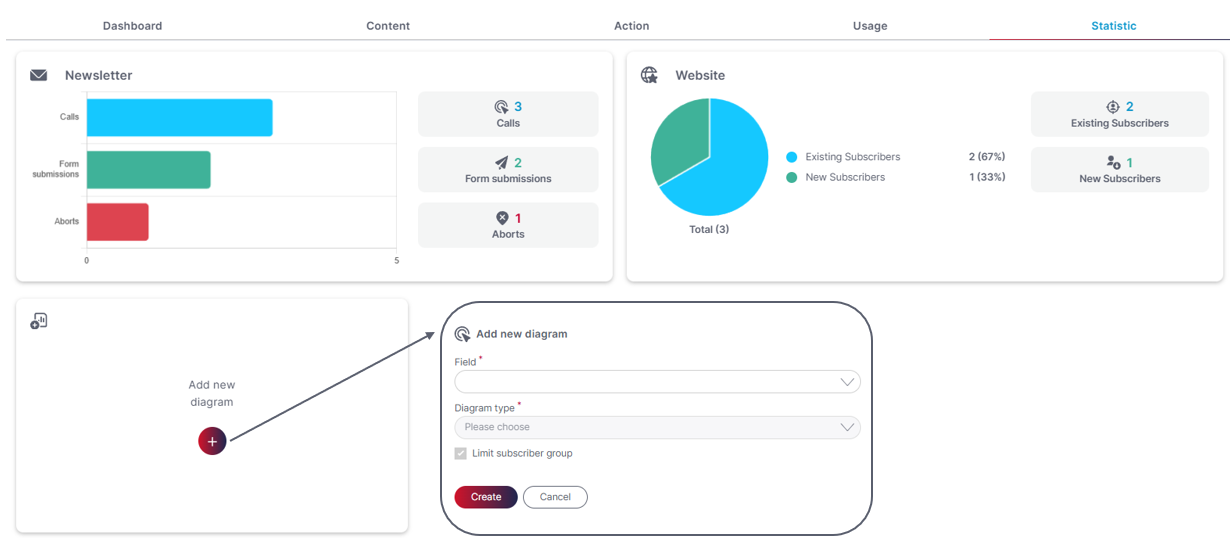
The form statistics also allow you to create custom charts. When creating a new chart, simply select the desired field and chart type (bar, column, pie, or doughnut chart). The chart can also be restricted to a specific subscriber group.
Updated 3 months ago