
[EN] Changes in the "action" tab
What actions can be triggerd by submitting the form?
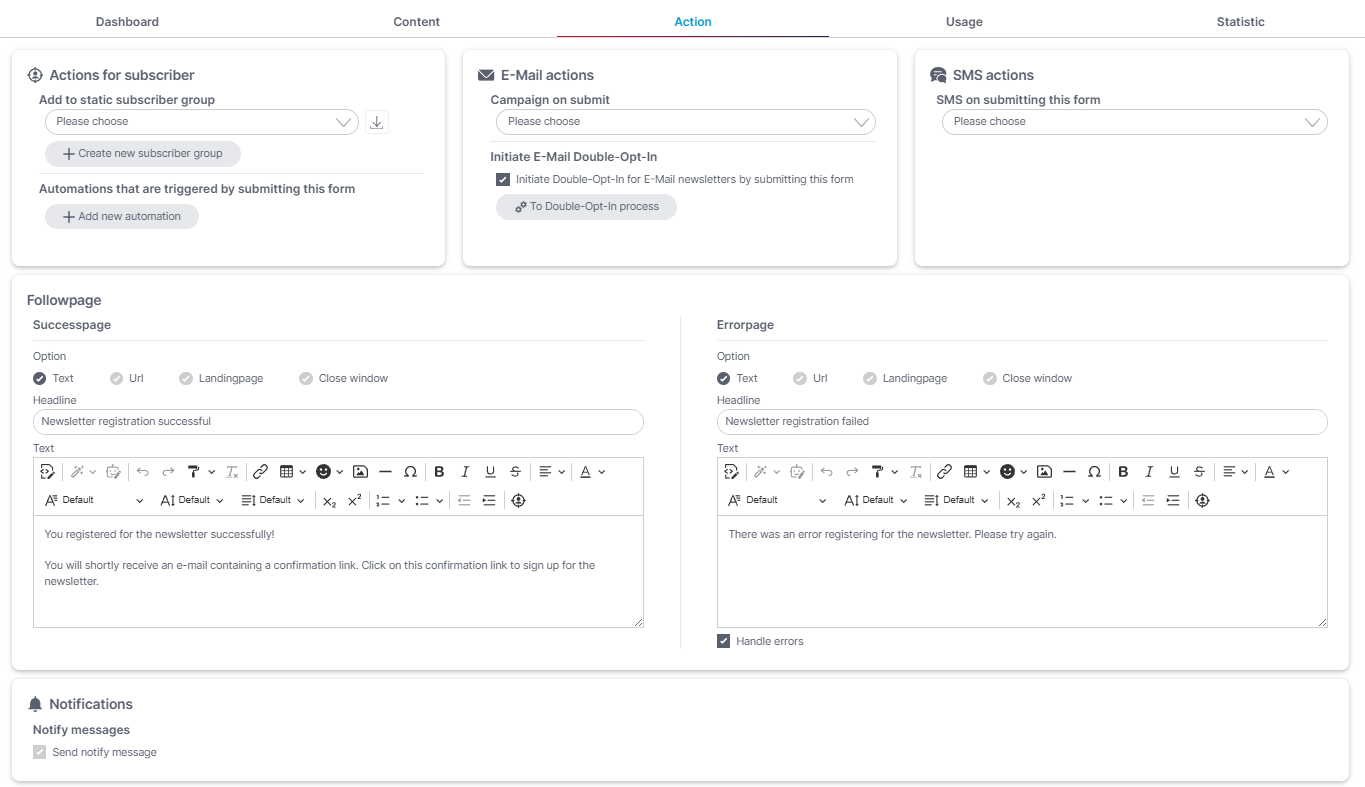
In the eworx Marketing Suite Form Editor, you’ll find the following options in the “Action” tab that can be triggered by submitting a form:
Actions for subscribers:
- Add subscriber to a static subscriber group.
- Trigger an automation that you’ve already created in the eworx Marketing Suite Workflow Editor or can create directly using a function in the Form Editor.
Email actions:
-
Automatically send an email campaign.
-
Trigger the currently active double opt-in process.
SMS actions:
- Automatically send an SMS campaign.
WhatsApp actions:
- Automatically send a WhatsApp campaign.
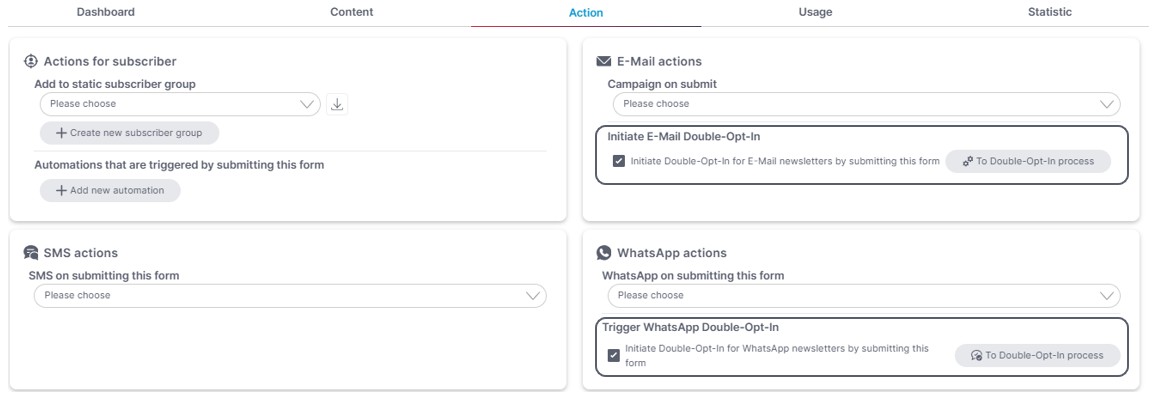
- Trigger the WhatsApp Double-Opt-In Process.
How can I initiate the double opt-in process by submitting a form?
To ensure your campaigns are sent in compliance with the law, you need the consent of your subscribers, which should also be documented in the newsletter system. The best way to obtain this consent is through the double opt-in process.
The eworx Marketing Suite provides you with a standard double opt-in process and a WhatsApp double opt-in process, which you can, of course, customize to your specific needs. The email process can then be initiated at various points - including via the eworx Marketing Suite form.
In the “Action” tab, you can initiate the currently active email and WhatsApp double opt-in processes to obtain consent from your recipients. This action is particularly well-suited for the corresponding newsletter sign-up forms on your website.
Requirements for WhatsApp:
- In the “WhatsApp Double-Opt-In Process,” ‘Template’ is selected as the “Opt-In Method” for the “Double-Opt-In Message.”
- An approved WhatsApp template has been saved.
- The “WhatsApp Double-Opt-In Process” has been activated with this configuration.
Once a form triggers the “WhatsApp Double-Opt-In Process,” it cannot be reset to the “Text” opt-in method.
How can I automatically send an campaign after submitting the form?
Email and SMS campaigns:
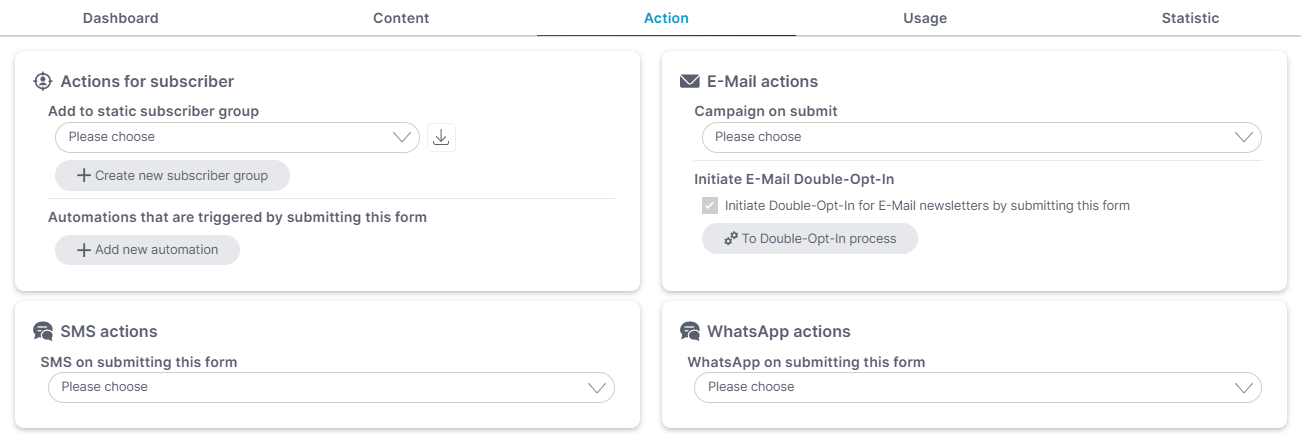
By submitting a form, you can trigger the automatic sending of a campaign. To do this, select a pre-configured event-based campaign from the drop-down menu. For email campaigns, make sure the campaign has the status “Ready to send.”
For example, if you want to send a subscriber a voucher immediately after they fill out the form, select a previously created event-based campaign from the drop-down menu.
WhatsApp Campaign:
It is also possible to trigger the automatic sending of a WhatsApp message by submitting a form. To do this, select a pre-prepared WhatsApp marketing or utility template from the drop-down menu.
For example, if you want to send a subscirber a voucher immediately after they fill out the form, select a previously created WhatsApp marketing template from the drop-down menu.
How can I automatically start a workflow after submitting the form?
The second possibility you can trigger by sending a form is the initiation of a workflow. You can create a workflow in advance and select it from the displayed list or create a new workflow directly by using the button „Add new automation“ in the eworx Marketing Suite form editor.

With the use of actions and filters, you can easily create a fully automated email marketing process. The eworx Marketing Suite workflow editor will help you with it. You will find all required information in this tutorial.
Which follow pages do I need for my form?
When a subscriber submits a form it is good to let him or her know, whether the registration was successful or not.
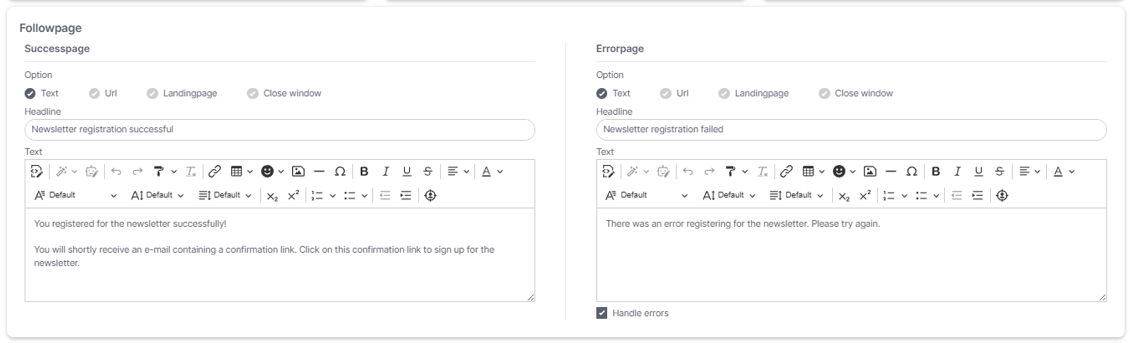
Configure the success and error page in the tab „Action„. There are four possibilities for such pages:
- Text: You define a text, which should be shown.
- URL: The forwarding leads to another webpage.
- Close window: The window is closed afterwards.
- Landing Page: In this case, you will be forwarded to a landing page. You can create them in the eworx Marketing Suite, when you navigate to Campaigns / Landing Pages.
Why do I create a success or error page?
If a form has been sent correctly, you can confirm it with a forward page. In the same way, it is also useful to show a sender that there has been a mistake during the sending, with an error page. In case of an error, the sender should repeat the registration process again. Possible mistakes can for example be empty required-fields.
How can I be notified about a subscriber’s form action (registration, sign on, etc.)?
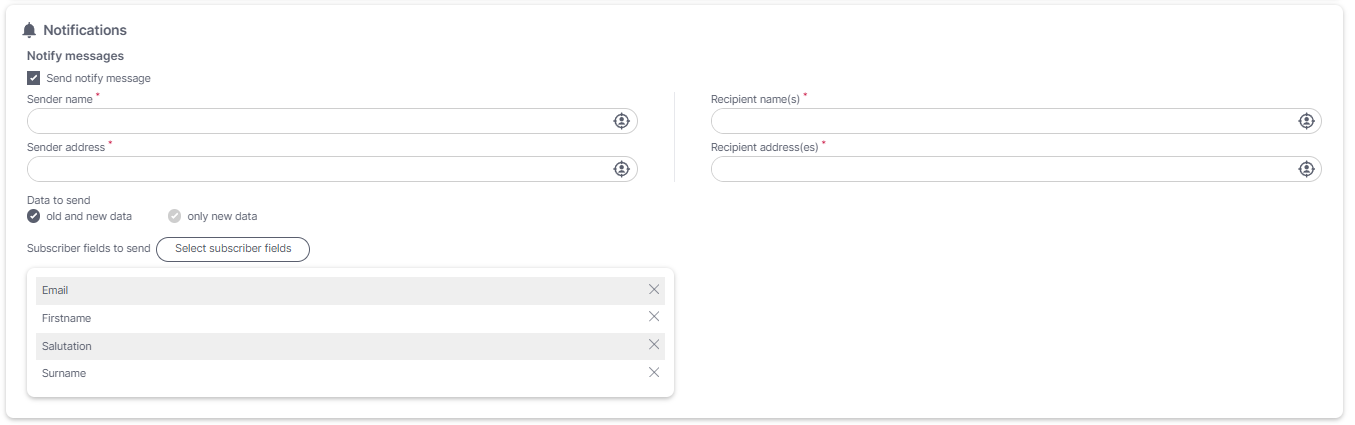
If you want to be informed after a form was sent successfully, you can set the option „Send notification message“ active and add your email address. This option is available in the tab „Action". Every required data will be sent to your email account after a form has been submitted.
How can I add all subscribers, who submitted the form, to a subscriber group?
It is possible to assign the subscribers who submitted a form to a static subscriber group. To do so, simply activate. Now you have two options:
- Create a new subscriber group.
- Assign subscribers to an existing subscriber group..

As soon as you have chosen a subscriber group, you can define, if you want to add only new subscribers or existing subscribers as well.
Updated 5 months ago