
[EN] Changes in the "usage" tab
Where can I use forms?
You can choose between integrating your form in a newsletter campaign or on your website. You can define the appropriate settings in the tab „Usage„.
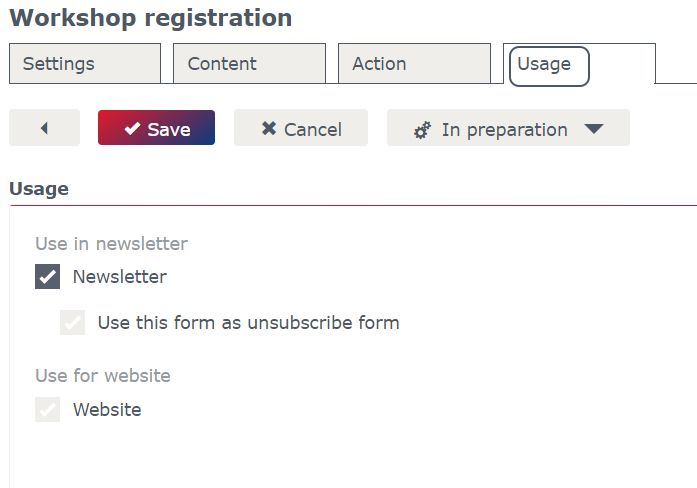
How can I link a form in a newsletter campaign?
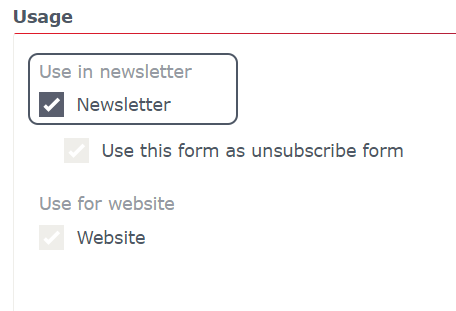
In order to link a form in a newsletter, you have to select the option „Newsletter“ in the tab „Usage„. The only other required setting in the eworx Marketing Suite form editor is the definition of the data matching process.
To link a form in a newsletter you have to choose „Add link“ in the settings of the specific article. Set the link type to form and you will see a list of all your created forms. Pick the form, which should be linked and save the settings.

How can I integrate a form in a website?
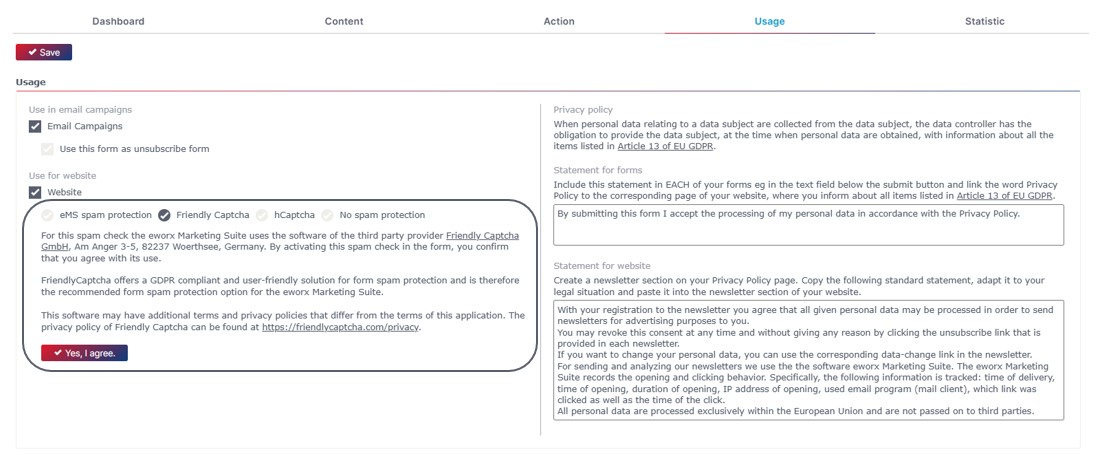
Choose the second option in the tab „Usage“ to integrate the respective form into your website. Further settings will appear to you.

By activating the spam protection, the eworx Marketing Suite checks the filled fields according to their plausibility. It checks, whether the subscriber is on any of the eworx Marketing Suite blacklists and what times the form has been sent (just if it was sent several times). Form spam programs, which fill in and send forms automatically, can be reduced to an absolute minimum.

It is also possible to integrate a captcha as spam protection. This offers even more protection against form spam.
Agreement must be given when using hCaptcha and FriendlyCaptcha. Agreement must be given by a user once per customer.
Additionally, you can find different options to integrate the form into your website:
- You can copy the whole HTML code and fill it in your site.
- Choose the „Code used for pop ups“ to open a new window including the form. Be aware that some browsers don’t allow Pop-ups.
- You can create a link on your website, which leads to the form by using the code „Url to form“.
- mailworx automatically creates a QR Code, which can be downloaded as JPG.
Note: If you modify field forms, check if the form fields on the website change too. Otherwise, insert the form again in your website.

What Happens During a Subscirber Match?
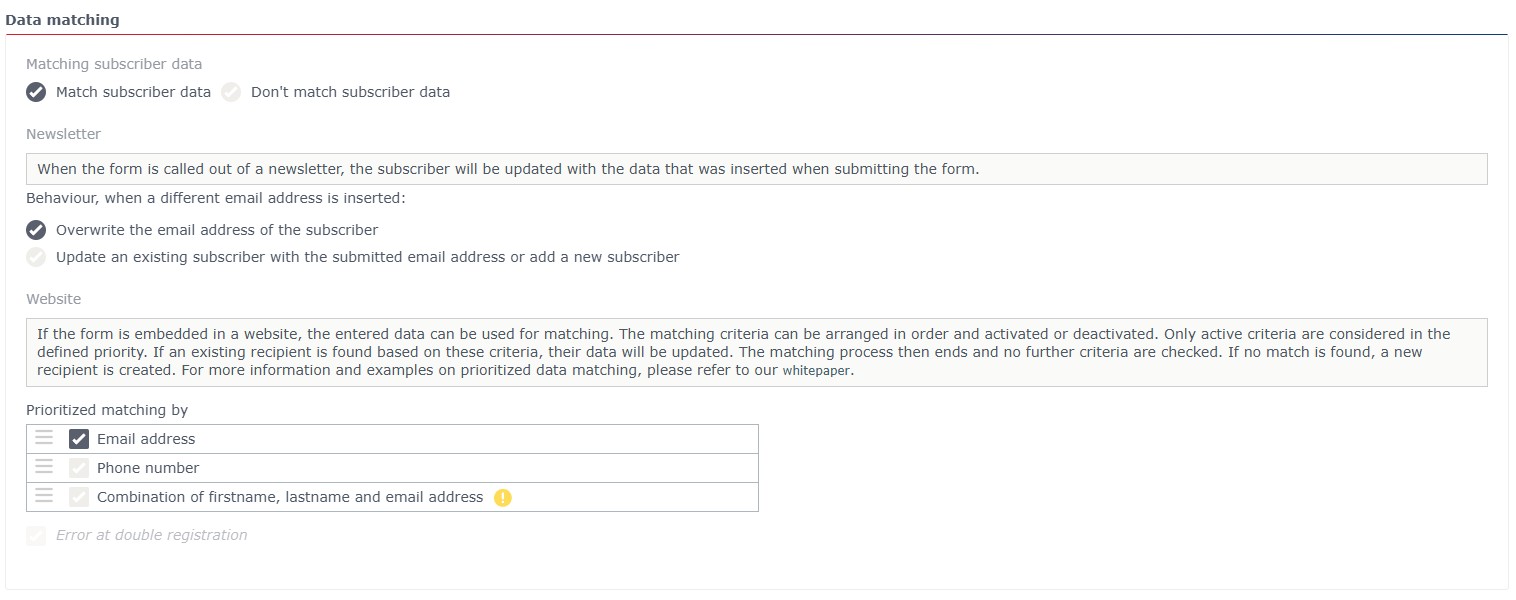
Whether you link to a form from the newsletter or embed it on the website—you must specify how, or whether, the data should be matched against existing subscribers.
What does “synchronize data” mean?
When a form is submitted, the system checks whether a matching subscriber already exists. If an existing subscriber is found, their data is updated. Otherwise, a new subscriber is created.
Form on a Website
If the form is embedded on a website and accessed there, the comparison is performed based on the defined duplicate criteria.
By default, the email address or the phone number is used. The combination of first name, last name, and email address can also be used as duplicate criteria.
Multiple duplicate criteria can be defined and ranked by priority. The system checks them in order until a match is found. If a matching subscriber is found, their data is updated. Otherwise, a new subscriber is created.
If a duplicate criterion is used whose field is not a required field in the form, a corresponding warning is displayed.
Form accessed from a newsletter
If the form is opened via a link in a newsletter, the subscriber is identified based on the information from the newsletter.
The following options are available for data matching:
- Overwrite the subscirber's email address
The email address entered in the form replaces the email address previously stored for the subscriber. - Update existing subscribers with this email address or create a new subscriber
The system checks whether a subscriber with the entered email address already exists. If so, that subscriber is updated. Otherwise, a new subscriber will be created.
What does “Duplicate Registration Error” mean?
This field can only be enabled if the form is active only on the website. The system checks whether a subscriber with this information already exists. If so, a predefined error page will be displayed.
Updated 4 months ago