
[EN] Event documents - practical guide
Practical Tips for Event Tickets, Registration Confirmations, and Namecards
This whitepaper provides practical tips on how to effectively use and structure event tickets, registration confirmations, and name badges in the eworx Marketing Suite.
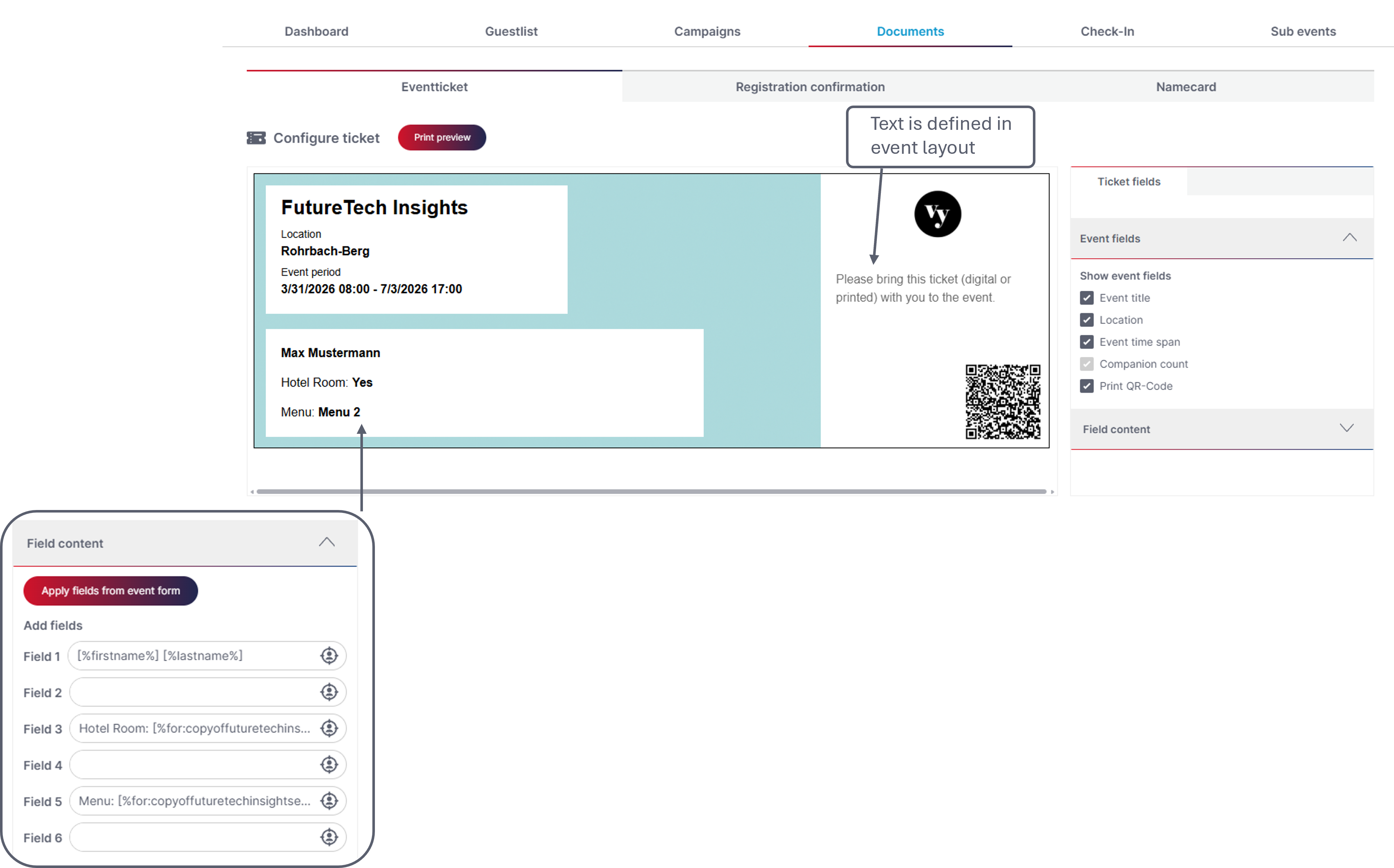
Use the Event Layout as a Design Template
The event layout controls only the visual appearance (colors, fonts, logo, background images).
You can also define additional text in the event layout that will be displayed on the event ticket.
Content such as subscriber fields or form fields is configured directly in the respective event.
👉 Practical Tip:
Create one or two standard event layouts that match your corporate design and reuse them for multiple events. Design changes are automatically applied to all linked event tickets, registration confirmations, and name badges.
Test Personalization in the Print Preview
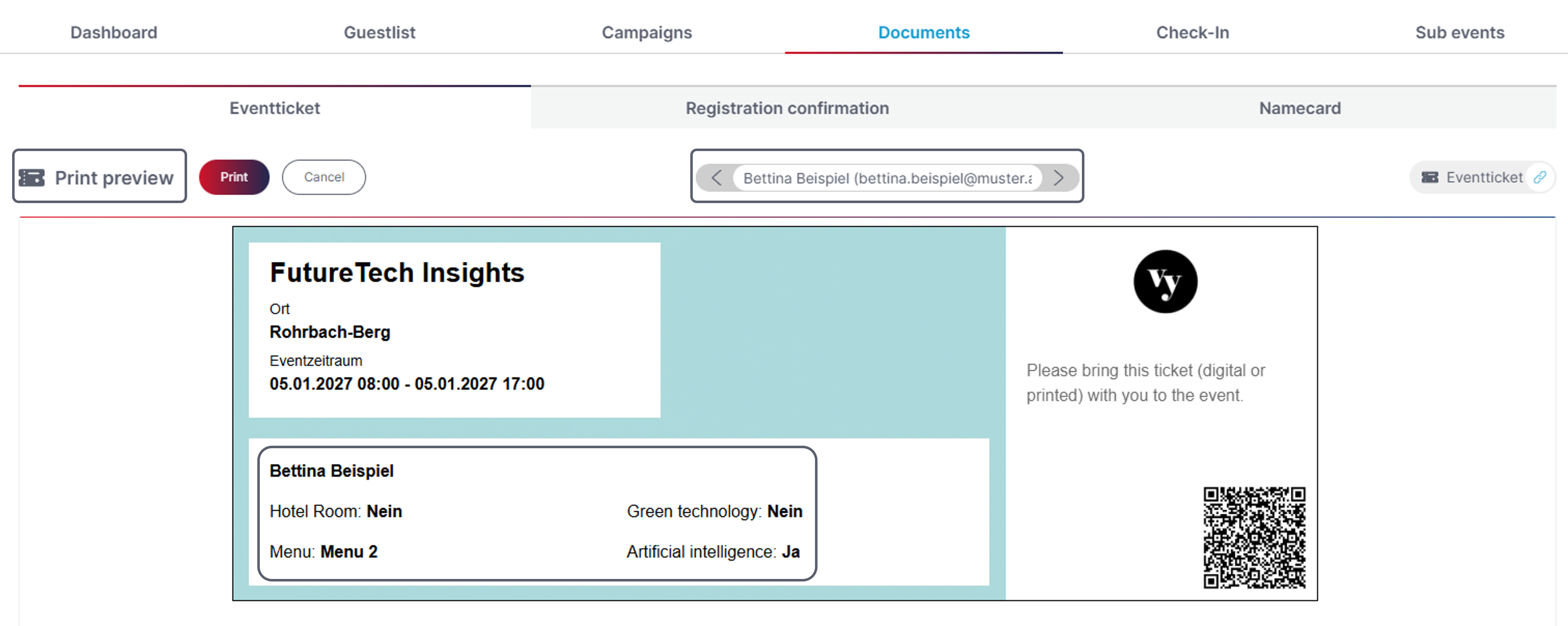
The print preview allows you to simulate personalization directly using a selected subscriber.
👉 Practical Tip:
Test different subscribers from the guest list to ensure that:
- All personalizations work correctly
- Inserted fields and text are displayed properly
- No empty placeholders remain visible
Send Tickets and Registration Confirmations via Campaign
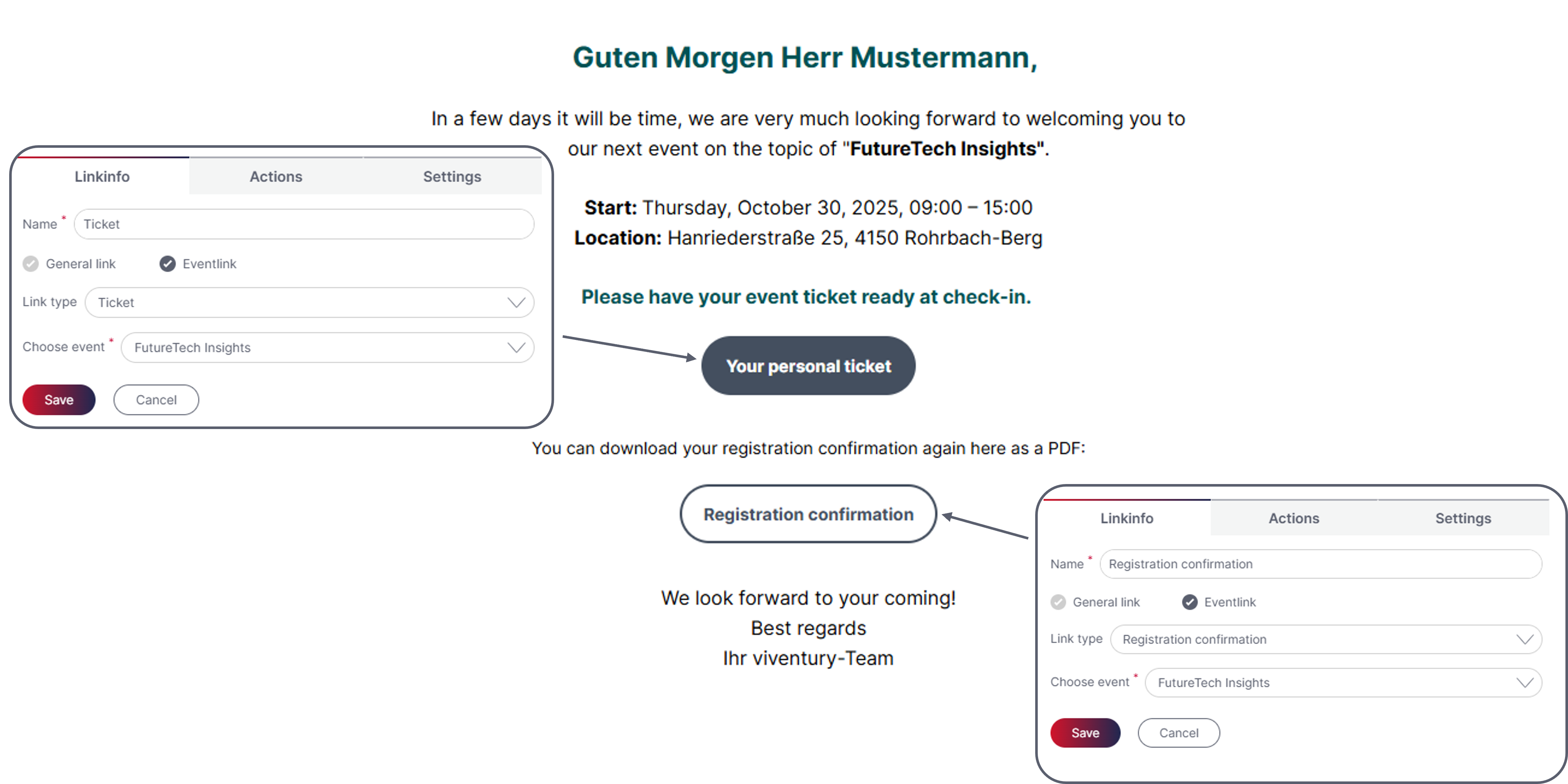
Tickets and registration confirmations are not sent automatically but are provided through an email campaign with the corresponding link:
- Event Link: "Ticket"
- Event Link: "Registration Confirmation"
👉 Practical Tip:
Make sure the correct event is selected in the campaign. If you have several similar events, it is easy to mix them up.
Clear button labels ("Download Ticket", "Download Registration Confirmation") also help subscribers understand what they are clicking on.
Prepare Name Badges Efficiently
Name badges are created and printed directly in the event under "Check-In and Event Ticket". They are not sent via campaigns.
👉 You can:
- Choose the appropriate format (e.g. business card size or custom dimensions)
- Reduce the number of displayed fields (e.g. name and company only)
- Define spare namecards to accommodate last-minute additions on-site
Before printing, we recommend checking the preview, especially for longer names or company names
Updated about 3 hours ago