
[EN] Campaigns of Events
During an event, campaigns are deployed whose content is tailored to the specific stage of the event process. Depending on the timing and registration status of the subscribers, different content, links and features can be integrated – for example, for invitations, reminders or follow-ups. In this way, all event communications can be planned in a structured manner and implemented consistently.
Which event links can I add to my campaign?
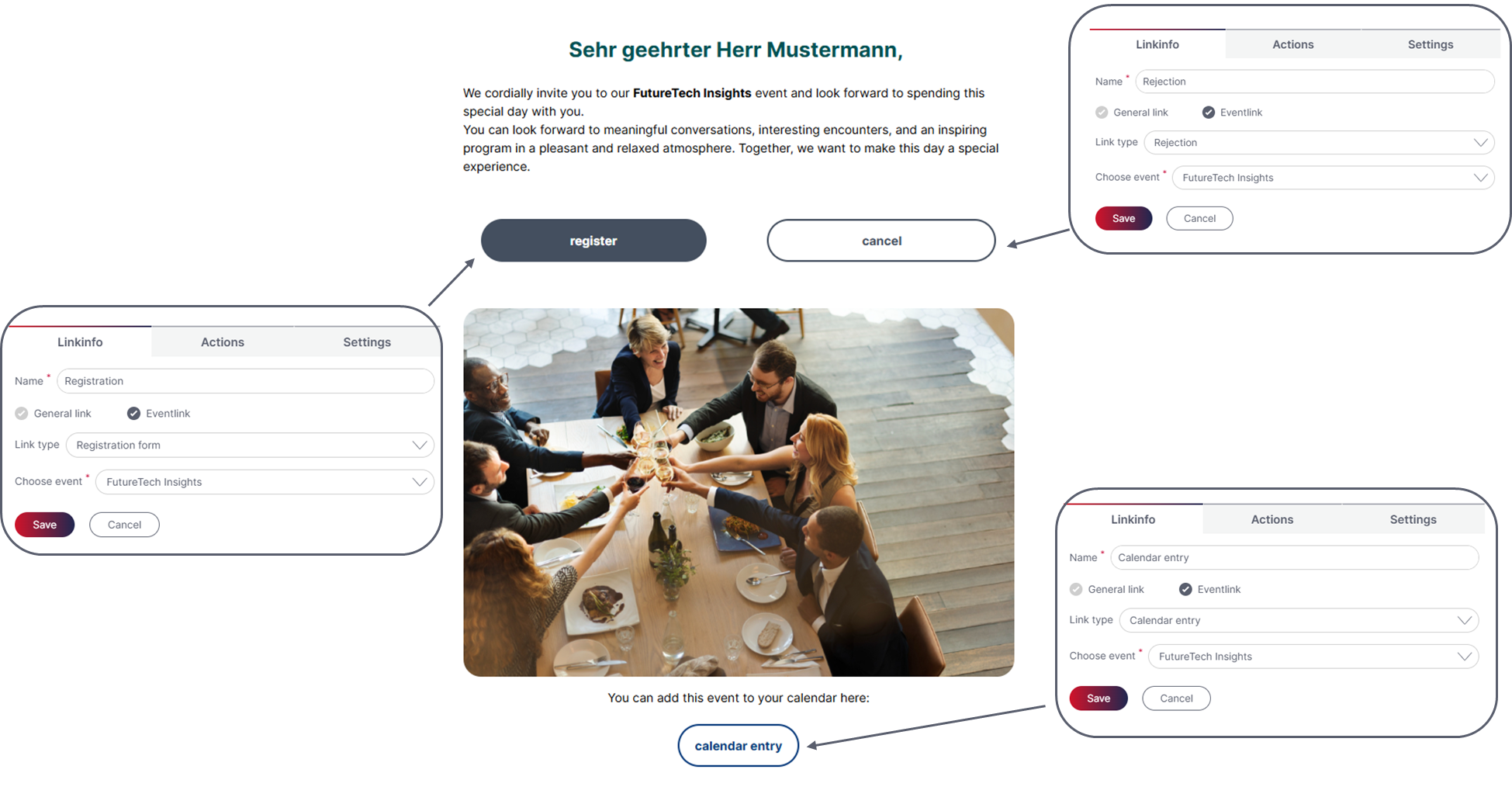
When creating an email campaign for your event (e.g. invitation or reminder) you can choose from different event links and link functions:
- Registration confirmation
Clicking the link will open the confirmation as a pdf file. - Event rejection
Linking to a cancellation site on that you can ask for the reason e.g. - Event registration
Linking to the subscription form of the event. - Calendar entry for event
Generating a calendar date from the event information that can be downloaded and saved in Outlook. - Event ticket
Clicking the link opens a personalized ticket with QR code as pdf file. - Simple subscription/unsubscription (additional link function)
You can e.g. link to a landing page and define under ‘additional settings’ if the link click should be registered as attendance to an event.
Which information do my subscribers/guests get
- In case of a subscription, cancellation or waiting list number your subscriber gets recent status information when clicking one of the first three event link types and gets the possibility to change his dates or the number of companions.
- If the subscriber already registered he also gets the chance to cancel the attendance.
- In case of a cancellation the subscriber can subscribe again when clicking the link to the registration form again.

How do I plan campaigns in advance?
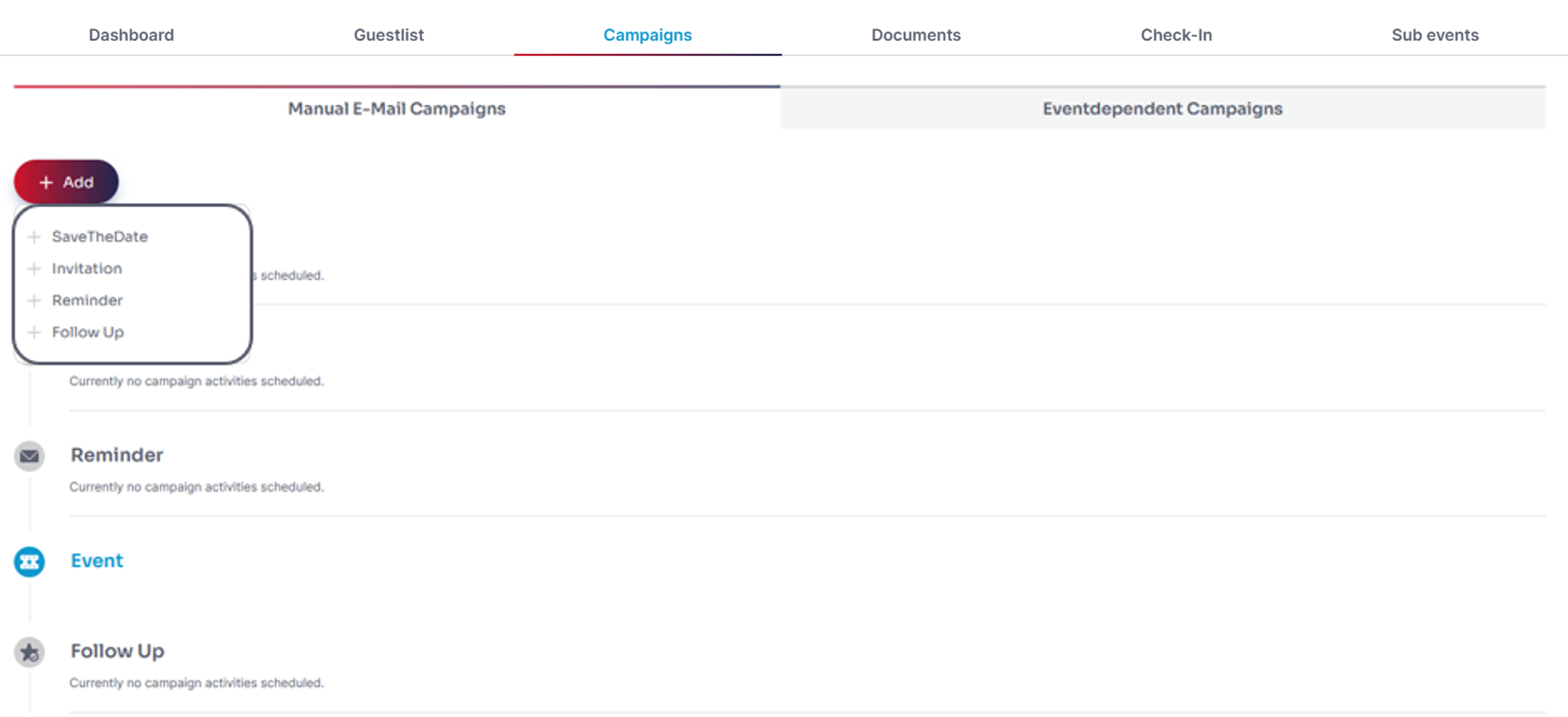
In the tab ‘Campaigns’ we differentiate between manual and event-based email campaigns.The tab with the manual email campaigns offers a time line for a perfect overview over all communication measures of the event.One of the big advantages of events is the possibility of planning campaigns in advance. With clicking the button ‘Add’ you can add a new campaign. You can choose from ‘SaveTheDate’, ‘Invitation’, ‘Reminder’ and ‘Follow Up’. You can also add various campaigns to every communication step. After choosing your campaign you can decide whether you want to add campaigns that already have been sent or send a new campaign. You can – as you may know from the campaign editor – plan your sending for a specific time or send the campaign directly. You can not only use target groups as subscribers but also automatically generated groups. That groups are generated automatically due to their subscription status to the planned sending time.
Here you can find an overview over the groups that can be chosen for different campaigns:
Invitation
- Event group ‘Invited subscribers without reaction’
Reminder
- Event group ‘Invited subscribers without reaction’
- Event group ‘Subscriptions’
Follow up
- Event group ‘Subscriptions’
- Event group ‘Invited subscribers’
- Event group ‘Attendees’ (actually present)
In the tab ‘event-based email campaigns’ you find those campaigns that were defined as ‘campaign when sending the form’ for the event form, the campaigns for the waiting list as well as campaigns defined for the attendance.
Am I able to deposit the companions’ personalized data in the campaign?
If you already linked a campaign to the campaigns in the event you can add the companions’ data to the campaign. You only have to edit the campaign. When clicking into a text field the toolbar appears which contains a symbol of a person. The linked campaign contains a new tab (Event fields) in the personalization pop up which allows you to add companion fields as well as companion number to the campaign.
In this pop up you can also add or delete components. The component ‘Number of companions’ is available per default.
After adding the personalization element you wish for in the campaign editor you can test the personalization by changing into preview mode.
Updated about 2 months ago